I built my son Cody his first computer last month. He is four. PC building for kids is a different animal than building for adults — the priorities flip completely, and most of what you read online about builds is irrelevant here. I went through the process and want to save another parent the trial and error. I turn it on so you don't have to.
What a 4-Year-Old Actually Does on a Computer
Cody does not game. He does not edit video. He watches PBS Kids, plays educational games that would run on a potato, and occasionally mashes the keyboard to see letters appear on screen. That is the user profile, and it changes everything about the build.
Understanding the Real Workload
A four-year-old's computer use is browser-heavy, mouse-driven, and punctuated by physical incidents. Spilled juice. Fingers on the screen. A keyboard that gets carried around by its cable. The machine needs to survive all of that and keep running without intervention.
The workload does not justify a dedicated GPU, a high-wattage PSU, or any component that generates meaningful heat. What it does justify is spending money on a case that is hard to tip over, a keyboard that can be wiped down with a disinfectant wipe, and a system that runs quiet enough to sit in a living room.
The Parts List — Built for Spills, Not Speed
You are building a tank, not a racecar. Every part choice should answer one question: can this survive a four-year-old?
Component Choices and Why
Here is what I put in Cody's machine:
Part | Component | Why This Choice |
|---|---|---|
CPU | AMD Ryzen 5 5600G | Integrated graphics, no discrete GPU needed, runs cool |
Motherboard | Micro-ATX B550 | Affordable, reliable, enough ports for peripherals |
RAM | 16GB DDR4-3200 | More than enough, cheap insurance against tab overload |
Storage | 500GB NVMe SSD | No moving parts, fast boot, hard to break |
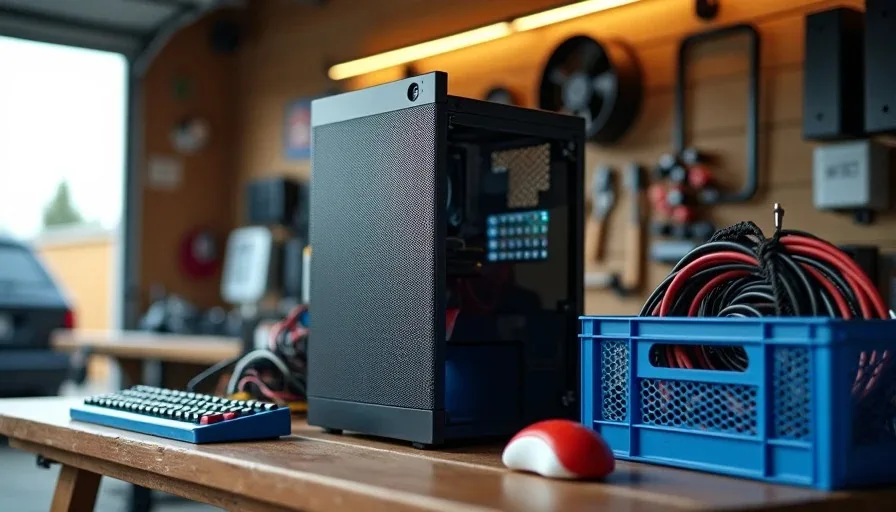
Case | Micro-ATX with mesh front | Easy airflow, no glass side panel to crack |
PSU | 450W 80+ Bronze | Quiet fan, low heat, plenty of headroom |
Cooler | Stock AMD Wraith Stealth | Quiet, low profile, nothing to snap off |
The total came to about 450 to $500.
The Quiet PC Build Approach
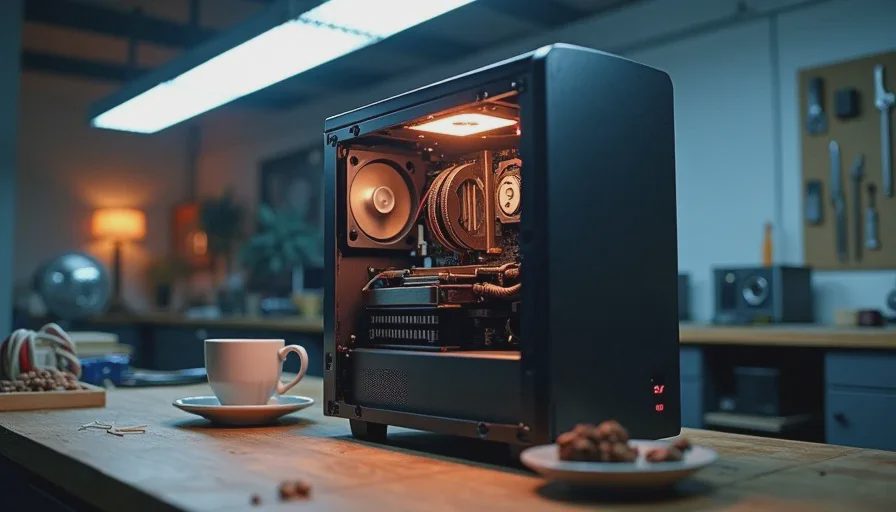
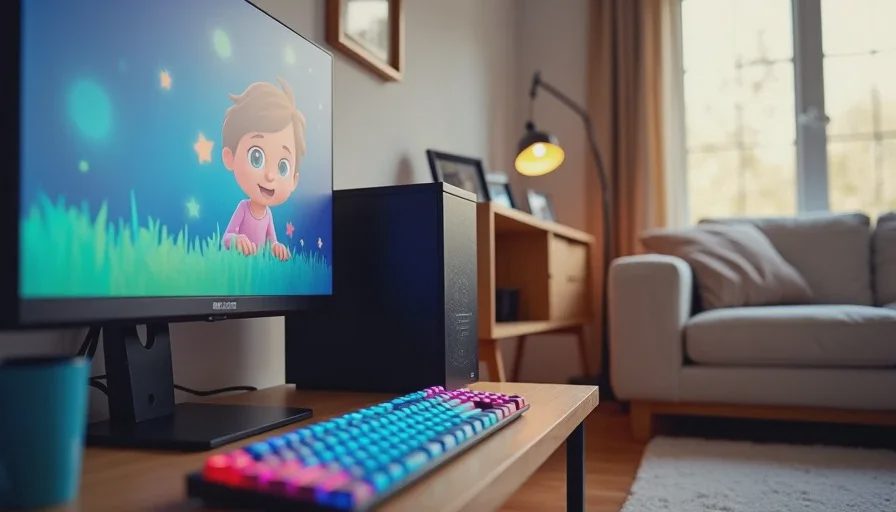
A quiet PC build matters more than performance here. Cody's machine sits in the living room, not a dedicated office. A fan that whines at 3000 RPM is going to drive Jen crazy during dinner. I picked parts that stay under 30dB under any realistic load — which, for PBS Kids streaming, is essentially idle. The stock cooler on the 5600G runs at roughly 800 RPM during his sessions. You cannot hear it from three feet away.
What Doesn't Matter (And Why That's Liberating)
Here is the list of things I did not spend money on:
GPU performance — integrated graphics handle anything a four-year-old touches
RGB lighting — looks cool for five minutes, then it is just a distraction
Overclocking headroom — there is nothing to overclock and no reason to
High-refresh monitor — 60Hz is fine for Daniel Tiger
Fancy case — it needs to be sturdy, not pretty
Skipping all of that freed up the budget for the things that actually matter. Spend the money on a decent keyboard that can take abuse. Spend it on a mouse that is small enough for little hands. Spend it on a monitor with a matte screen that hides fingerprints.
Building for the User, Not the Specs
This is the part that took me a minute to internalize. I have been building PCs for over twenty years, and my instinct is to maximize specs. More cores, more clocks, more frames. But Cody does not care about any of that. He cares that the computer turns on when he presses the button, that PBS Kids loads without buffering, and that the keyboard makes letters when he types.
The philosophy is simple: build for the person using the machine, not for the benchmark. A four-year-old needs reliability and durability. Everything else is noise.
Setting Up Parental Controls Before Handoff
Do not hand a kid a computer without locking it down first. I spent more time on software configuration than I did on the physical build. The hardware is just the delivery mechanism — the parental controls are the real operating system here.
What I Configured
Created a standard user account for Cody — no admin privileges, no ability to change system settings
Set up Microsoft Family Safety with web filtering at the strict level
Configured screen time limits — 30 minutes per session, 60 minutes per day
Disabled the ability to install or uninstall anything
Pinned PBS Kids and Starfall to the taskbar for one-click access
Removed the browser from the start menu — he cannot type URLs yet, so there is no reason for it to be visible
The Things I Would Do Differently
If I built this again, I would go with a magnetic-mount monitor arm instead of the stock stand. Cody pulled on the monitor within the first week, and the stand wobbled enough to make me nervous. A bolted-down arm would have solved that.
I would also skip the optical drive I salvaged from an old build. It is noisy, it is useless, and Cody figured out how to open the tray in about ten seconds flat.
The Bottom Line
PC building for kids means rethinking your priorities completely. Durability over performance. Quiet over powerful. Parental controls over overclocking. The machine I built for Cody is not fast by any enthusiast standard, and that is exactly right. He does not need fast. He needs something that turns on every time he presses the button and survives whatever he throws at it.
That is the build. Total cost under $500. Total noise under 30dB. Total stress on Dad: low. That is a win in my book.