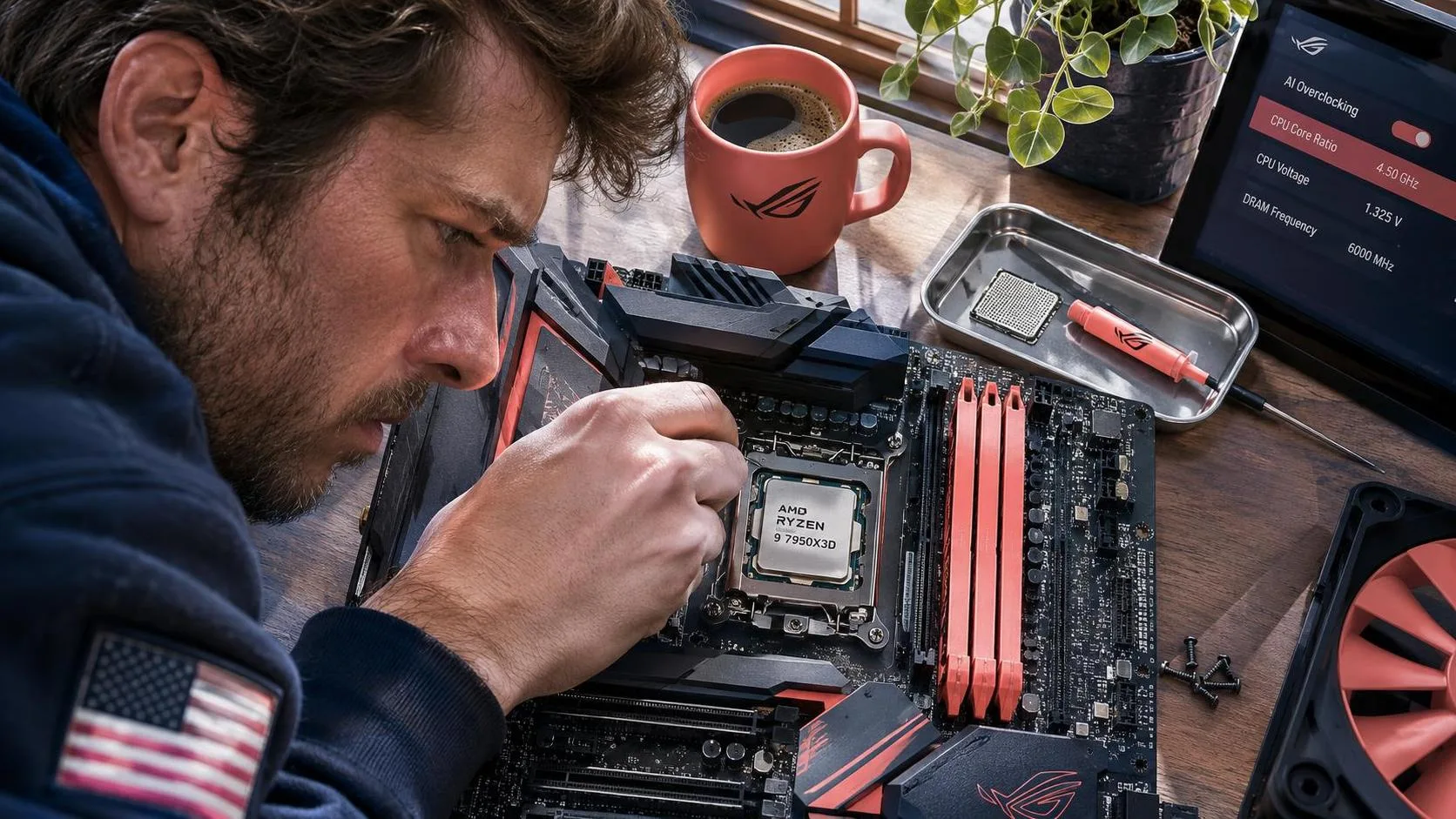
A gaming PC that crashes once a week is not a fast PC. For a 9800x3d overclock, start with stock settings and a stable baseline, then try a modest Precision Boost Overdrive adjustment and test it thoroughly. The Ryzen 7 9800X3D supports overclocking, but extra voltage and aggressive settings can add heat and instability for little practical gain. If you have never tuned a CPU before, leave manual voltage alone.
What PBO actually changes
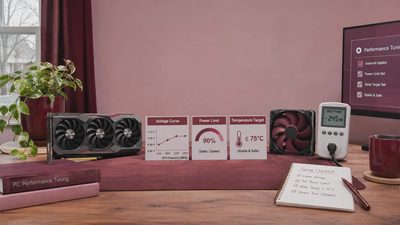
Precision Boost Overdrive, or PBO, lets the processor boost within limits that can be adjusted in the BIOS. Unlike a fixed all-core overclock, it keeps the CPU's normal boosting behavior, so clock speed can still change with workload and temperature. That makes it a sensible starting point for a gaming machine.
Curve Optimizer is a separate tuning control often found alongside PBO. A negative curve value changes the voltage-frequency curve, allowing the CPU to attempt a given frequency at a lower voltage. The catch is that too much negative offset can cause errors, even when temperatures look great. A benchmark completing once does not prove the setting is stable.
For most builders, a 9800x3d overclock should be an experiment, not a promise of free frames. Some games are limited by the graphics card; others may not improve enough to notice. Measure before and after with the same game scene, resolution, and graphics settings. If the result is within normal run-to-run variation, call it a tie.
Get the baseline right first
Update the motherboard BIOS using the board manufacturer's instructions, and load the BIOS defaults before you start. BIOS updates can change settings, so note your existing configuration first. If you use drive encryption, have the recovery key available before changing firmware settings.
Check that the cooler is mounted correctly, the pump or CPU fan is connected to the appropriate header, and the case has a clear path for intake and exhaust. A hot room makes cooling harder; no BIOS trick fixes a case choking on its own exhaust. Clean dust filters and make sure fans are actually spinning under load.
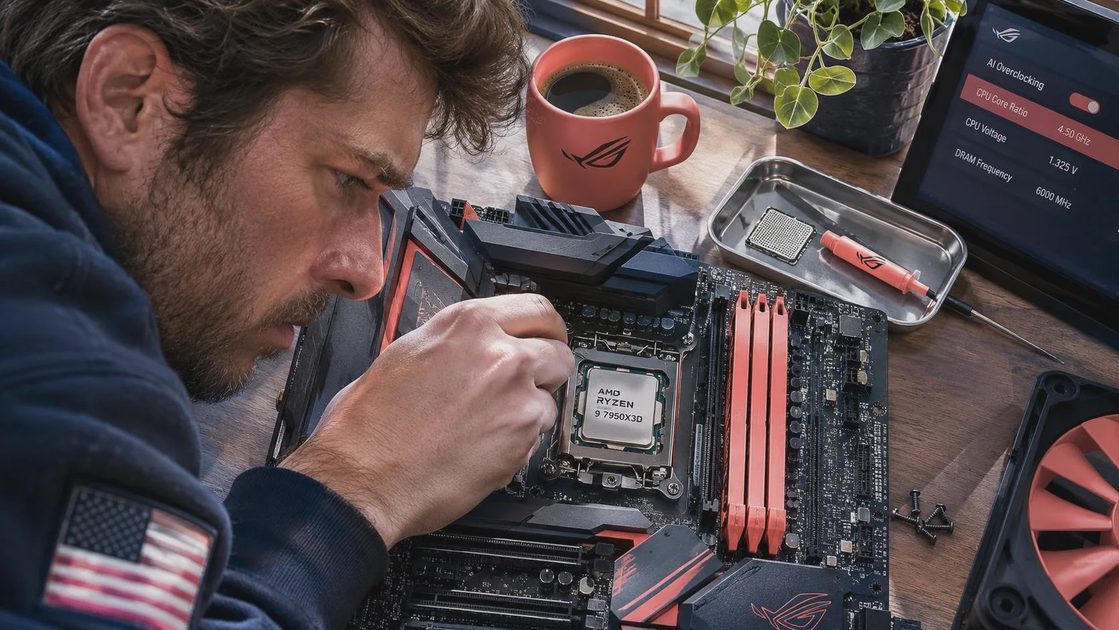
Boot into Windows and record CPU temperature, clock behavior, and performance at stock. HWiNFO can display sensor readings, while Cinebench offers a repeatable CPU workload. For a gaming baseline, use a built-in benchmark where available or repeat the same short section of a game. Compare several runs rather than treating one unusually high score as gospel.
Run the machine at stock long enough to establish that it is behaving normally. If it already freezes or reboots, fix that first. Memory settings, drivers, cooling, and power delivery can all cause trouble that a CPU tuning session will only make harder to diagnose.
A conservative 9800x3d overclock procedure
Enter the BIOS and find Precision Boost Overdrive. The menu location and available options vary by motherboard and firmware. Start with PBO enabled or set to its motherboard-provided default behavior; do not immediately enter custom power limits. Save, boot, and repeat the same measurements you took at stock.
Next, find Curve Optimizer and try a small negative all-core setting. A value of negative 5 is a reasonable starting experiment, not a guaranteed stable setting or a voltage measurement in millivolts. Save the change, boot, and test. If it holds up, you can try another small step, such as negative 10. There is no prize for reaching a particular number.
Change one thing at a time. Leave boost-clock overrides, manual voltage, and custom power limits alone while you assess the curve. Otherwise, when the PC crashes, you will not know which adjustment caused it. Individual cores can have different margins, so a setting that seems fine across all cores under heavy load may still fail when one core boosts during lighter work.
If the system crashes, reports hardware errors, or behaves oddly, return to the last stable setting. If that does not solve it, restore the stock curve. Some chips simply have less tuning headroom than others. That is normal, not a challenge to solve by feeding the processor more voltage.
Test for the crashes that matter
A useful 9800x3d overclock has to survive more than one benchmark. Run a sustained CPU workload to check cooling and heavy-load stability, then test lighter and mixed workloads. OCCT and Prime95 are examples of tools that can stress a CPU; read their settings before starting, because different tests place very different demands on the system.
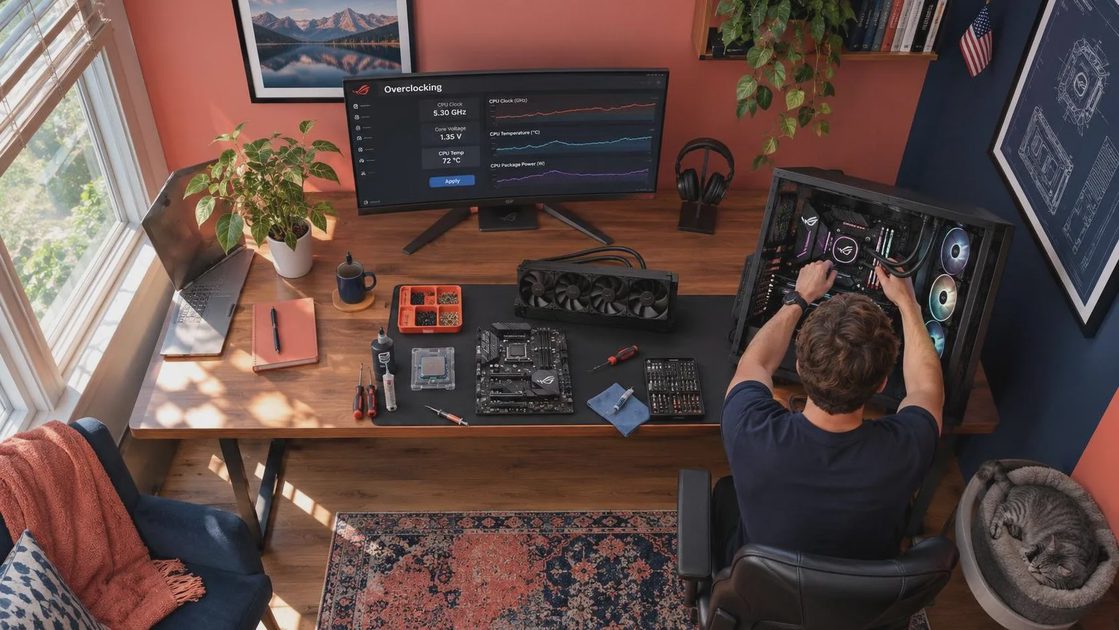
Watch temperatures during the run and stop if cooling is clearly out of control, the system throttles heavily, or you see errors. A demanding stress test can push temperatures higher than ordinary gaming does. Compare readings against AMD's published specifications for the processor, not a random screenshot from another builder's case.
After the stress test, use the PC normally. Launch games, switch applications, let it idle, and wake it from sleep. Curve instability can show up during light workloads as well as heavy ones. Check Windows Event Viewer for recurring WHEA hardware errors around the time of problems; an error is a clue to investigate, not automatic proof that the CPU curve caused it.
Give the settings several days of ordinary use before trusting them with important work. Stress testing cannot guarantee that a machine will never crash, but a combination of sustained load, varied workloads, and daily use is far more useful than a single score.
Recovery, memory, and warranty
Before starting a 9800x3d overclock, locate the motherboard's clear-CMOS instructions. If the machine will not boot after a change, follow the board manual to reset the BIOS. Shut the system down and disconnect power when the manual instructs you to. A reset generally clears your custom settings, so you may need to restore fan curves and other preferences afterward.
Test CPU tuning separately from memory tuning. EXPO is a memory overclocking profile, and an unstable memory setting can look like a CPU problem. If you are troubleshooting crashes, return the memory to default settings and establish stability before adding the profile back. Back up important files before extended stability testing; a crash at the wrong moment can corrupt unsaved work.
Finally, check AMD's warranty terms and your motherboard documentation before enabling overclocking features. Operation outside published specifications can affect warranty coverage. Right now, the useful next step is simple: record a stock benchmark and temperature, then decide whether a small, carefully tested change is worth the time.