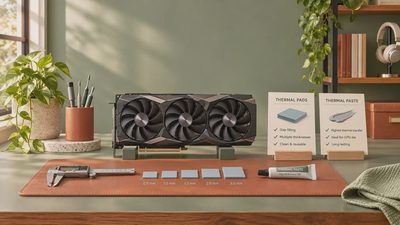
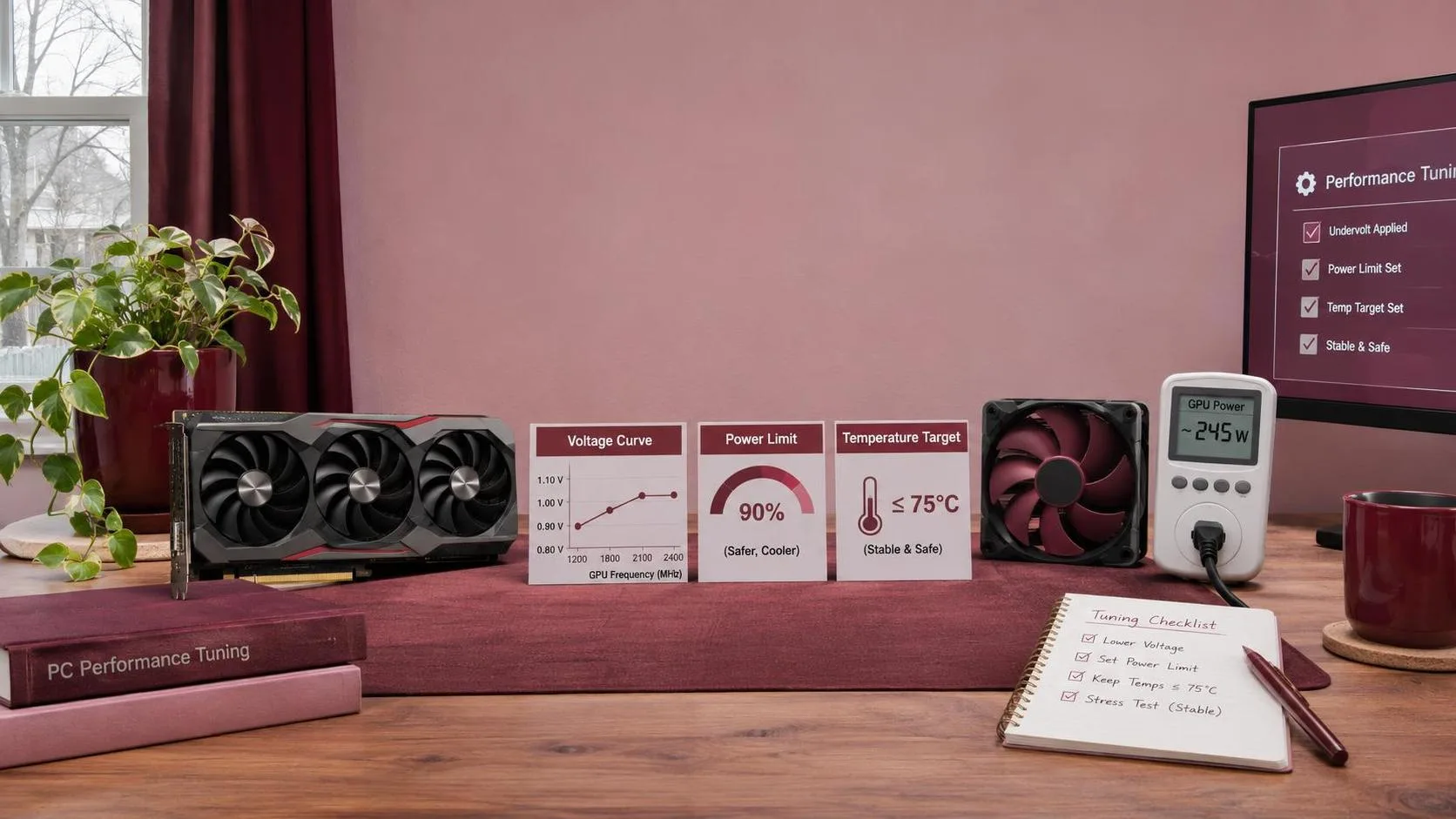
A hot, noisy graphics card can make an otherwise good build a pain to live with. For 9070xt undervolt settings, start in AMD Software: Adrenalin Edition, note the default GPU voltage value, and lower it by 25 mV. Leave clock speed, memory, and power limit alone. Test that change before going any lower. There is no magic voltage that works on every Radeon RX 9070 XT, and copying a stranger's number is a good way to spend your evening diagnosing crashes.
The goal is simple: use less power and make less heat without losing stability or much performance. If your card already runs cool and quiet, the payoff may be small. If its fans sound like a shop vac, an undervolt is worth trying, but it will not fix a case with blocked airflow.
Before changing 9070xt undervolt settings
Update or confirm your AMD graphics driver is working normally, then open Adrenalin and find the Performance section. The Tuning page is where manual GPU controls typically live. Names and available options can vary by driver version and card, so read the labels on your screen instead of clicking through a screenshot from an old guide.
Run a game you actually play for 15 to 20 minutes at your usual resolution and graphics settings. Record average frame rate if the game provides it, GPU power, clock speed, fan speed, and GPU and hotspot temperatures where available. Adrenalin's performance metrics can help. Write down your room temperature too, or at least note whether the room is unusually hot.
This baseline matters. A lower fan speed with the same performance is a useful result. A cooler card that has quietly dropped a lot of clock speed may not be. Also check that the game is not capped by a frame limit or vertical sync if you are comparing maximum performance.
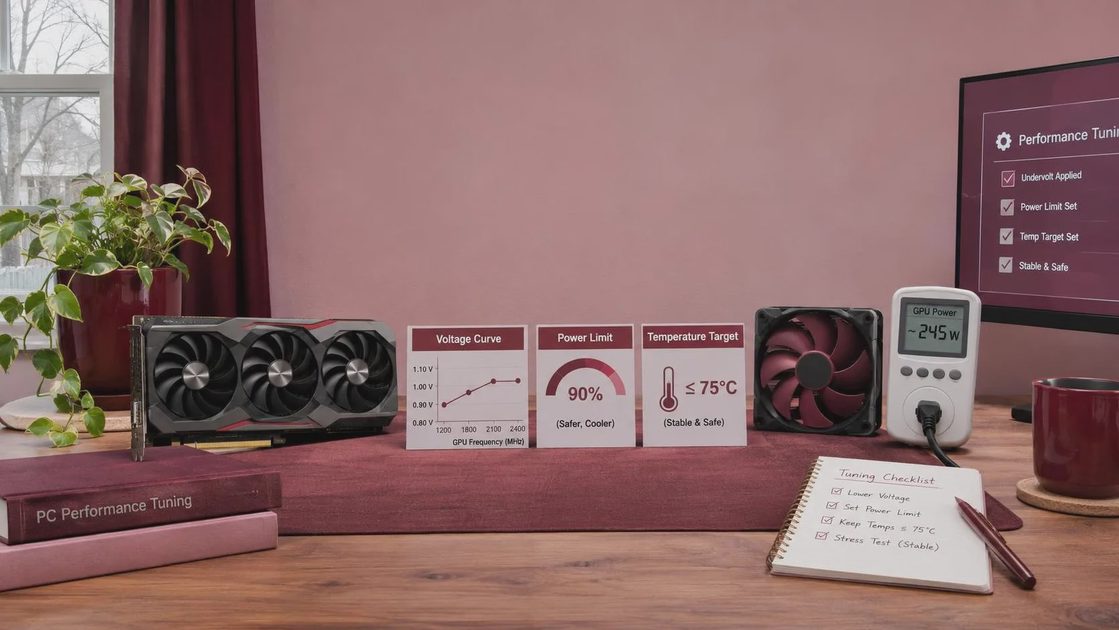
Make the first voltage change
In the Tuning page, choose manual tuning and enable the GPU tuning controls. Accept any warning only after reading it. Find the voltage control and note its original value. Reduce the displayed value by 25 mV, apply the change, and leave the other sliders at their defaults.
For example, if your card's control starts at 1,200 mV, try 1,175 mV first. Those are example numbers, not a recommended target. Your starting value may differ. Adrenalin's voltage setting is a tuning control, not a promise that the GPU will run at that exact voltage under every load.
Use the card for a short check first: launch a game, play a demanding scene for 15 to 20 minutes, and watch for a black screen, driver reset, flickering textures, or a sudden performance drop. If it passes, you can reduce the setting by another 25 mV and repeat. If it fails, return to the last value that passed the short check. Passing once is not proof of long-term stability.
I would stop when another step produces little practical improvement, even if the card has not crashed. Chasing the lowest number is a hobby; keeping the machine working is the job. Avoid changing the maximum clock or power limit at the same time, because then you will not know which adjustment caused a problem.
Test 9070xt undervolt settings under different loads
Once you have a candidate, give it a longer workout. Run a demanding game for at least an hour, then try a second game with a different workload. Include the game that normally gives your system the most trouble. A repeatable benchmark run can help compare performance, but a benchmark pass alone does not guarantee that every game will behave.
Pay attention to menus, loading screens, and transitions as well as heavy gameplay. An unstable GPU can fail when the load or clock speed changes, not just when it is maxed out. Afterward, let the PC idle, wake it from sleep if you use that feature, and try your normal desktop tasks.
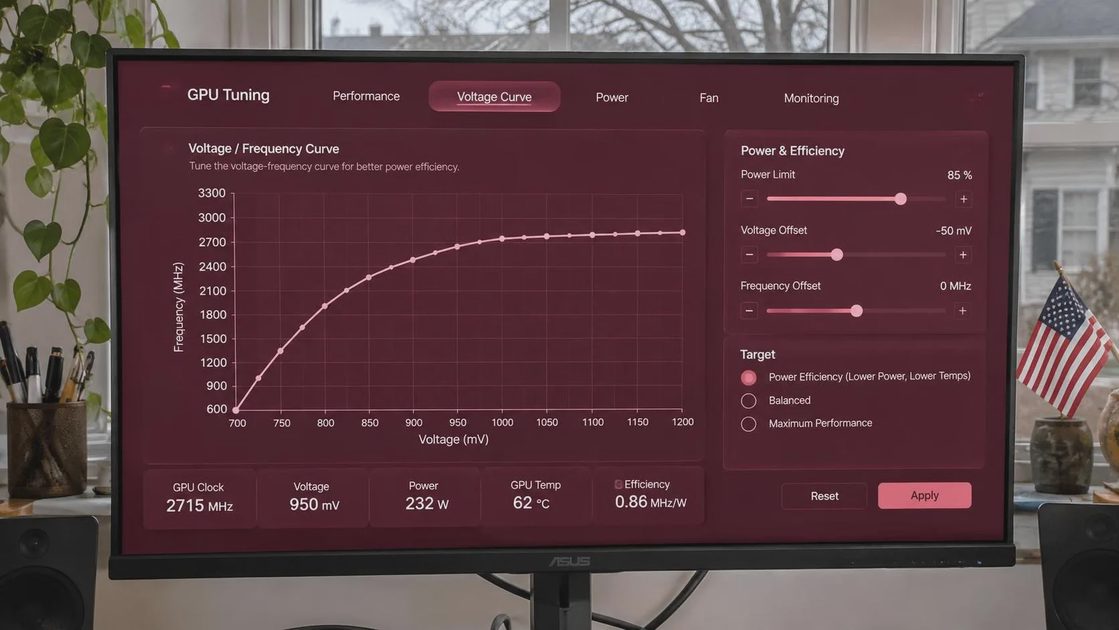
Compare the results with your baseline under roughly the same conditions. Look at power and temperatures alongside frame rate and fan speed. Room temperature, scene selection, background downloads, and a game update can all muddy the comparison. Do not call a one-frame difference a win.
If the driver resets, the screen goes black, the PC freezes, or a game crashes without an obvious game-specific cause, raise the voltage by 25 mV and test again. If trouble returns, raise it another step or restore defaults. A little extra voltage headroom is cheaper than losing an unsaved session.
When 9070xt undervolt settings do not solve the noise
Check the obvious physical stuff before blaming the silicon. Make sure the GPU fans spin under load, intake filters are clean, and the case has a clear path for cool air to reach the card. A solid front panel pressed against clogged filters can make every fan work harder. Keep cables clear of fan blades, and shut the PC down before moving anything inside.
A sensible fan curve can also help, but do not simply force the fans to crawl while temperatures climb. Watch both GPU and hotspot readings during a sustained game session. If temperatures or noise remain concerning at stock settings, check the card maker's guidance and inspect the case airflow before assuming an undervolt is the cure.
Power-limit adjustments are a separate tool. Reducing the limit can lower heat, but it can also reduce performance, particularly in demanding scenes. If you want to try one, establish a stable undervolt first, save or record those settings, and then change the power limit separately. Retest so you can see what the new change actually did.
Save a stable profile and know how to recover
Once your 9070xt undervolt settings have survived your normal games and a few days of ordinary use, save a tuning profile in Adrenalin if the option is available. Also keep a note of the settings outside the app. Driver updates or a crash can reset tuning, and an old profile may need checking after a software change.
If the display goes black or the driver recovers, give the system time to respond. After a restart, open the tuning page and restore its default settings before troubleshooting further. If instability continues at defaults, the undervolt was not necessarily the whole problem; check drivers, temperatures, power connections, and any other overclocks.
Start now by recording one stock game session. Then make that first 25 mV adjustment and run the same scene again. Keep the change only after the longer stability checks pass. A quiet PC is nice. A quiet PC that stays on is better.