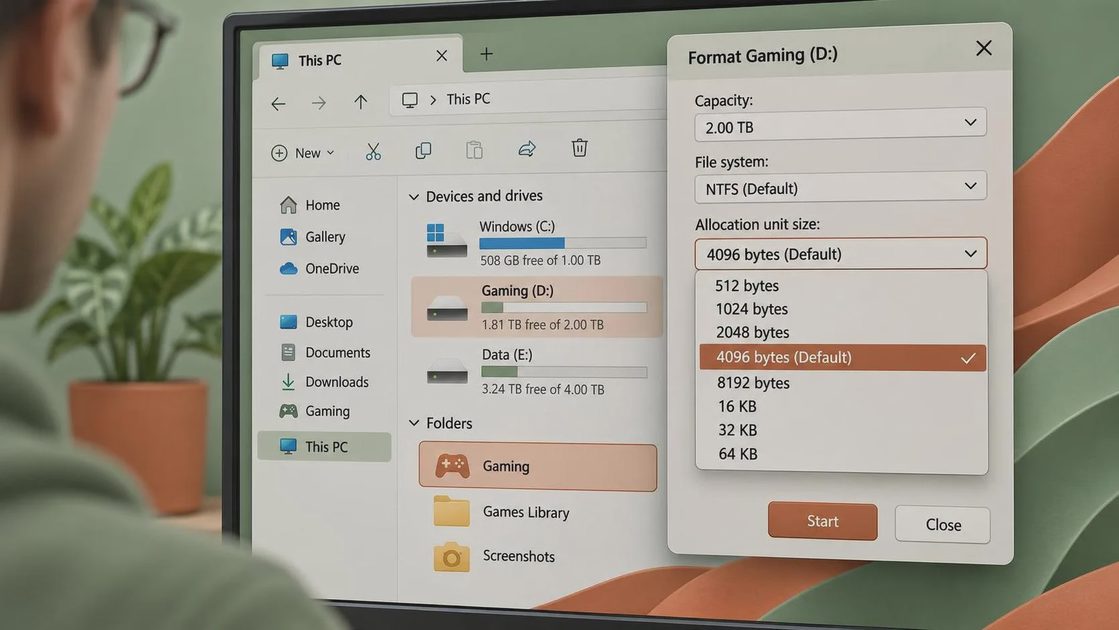
A fresh game drive is no place to gamble on a magic formatting tweak. The best allocation unit size for ntfs gaming is usually the default offered by Windows, typically 4 KB for a reasonably sized NTFS volume. Leave it there for a drive holding Windows and games, or for a dedicated game library. A larger cluster size is unlikely to deliver a meaningful gaming boost and can waste space on smaller files. If the drive already works, don't reformat it just to chase this setting.
What the setting actually does
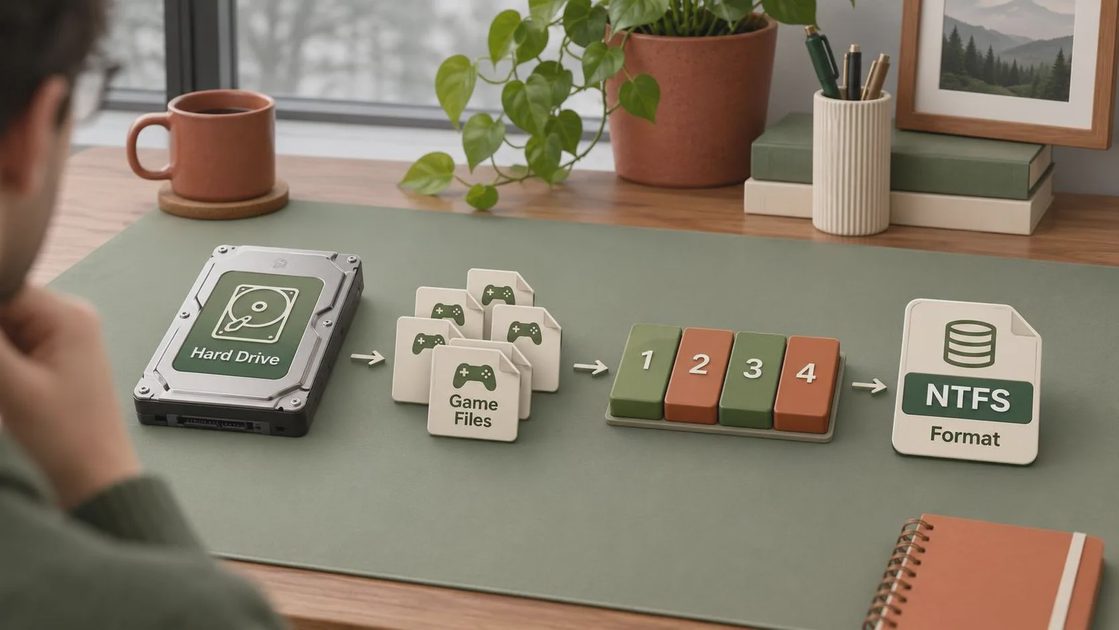
An allocation unit, also called a cluster, is the smallest unit of disk space the file system allocates to a file. A file doesn't have to fill the last cluster it occupies, so that unused portion is unavailable to other files. This is called slack space.
Say a file takes up 5 KB. With 4 KB clusters, it occupies two clusters, or 8 KB. With 64 KB clusters, it occupies one cluster, or 64 KB. That's a simplified example, but it shows the trade-off: larger clusters can waste more capacity when a drive contains lots of small files.
Games aren't just one enormous file each. A library can include large archives alongside smaller configuration files, save data, executables, and other odds and ends. The mix depends on the game. You don't need to count those files yourself; the point is that a gaming drive isn't automatically a good candidate for oversized clusters.
Cluster size is also not the same thing as your SSD's physical sector size, the size of a game download, or the size of each read request. Changing it doesn't turn a slow drive into a fast one.
Why the best allocation unit size for ntfs gaming is usually the default
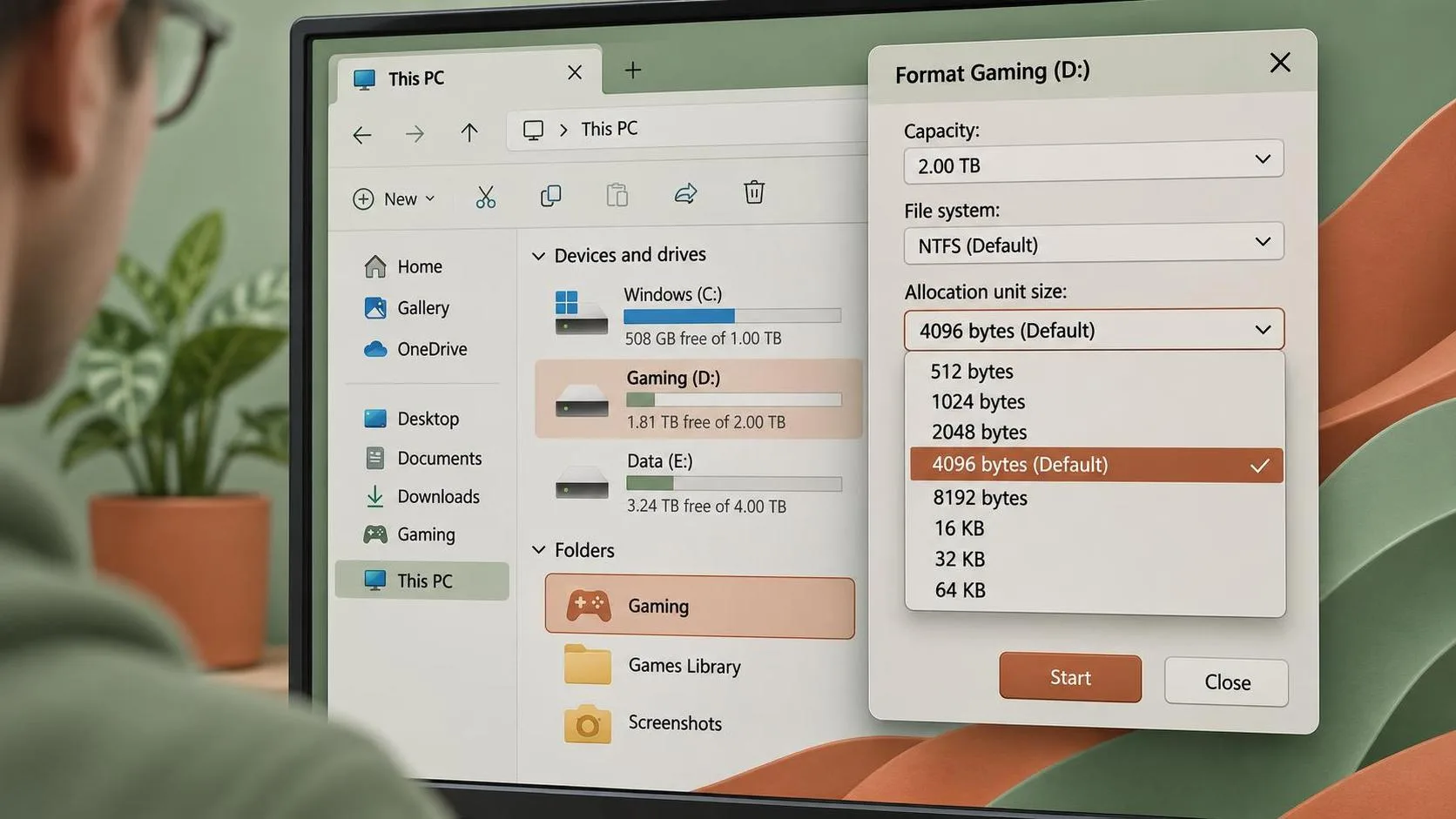
Windows' default is the sensible choice because it balances space efficiency and compatibility for ordinary use. On many common NTFS volumes, that default is 4 KB. The exact default can depend on volume size and formatting options, so check what Windows displays rather than assuming every disk will show the same number.
A larger cluster can reduce the number of clusters needed to represent a large file. That doesn't mean your games will load noticeably faster. Loading depends on the drive, the game's storage and decompression behavior, the CPU, and what else the system is doing. Cluster size is a small part of that picture, not a substitute for a healthy SSD and enough free space.
For a Windows boot drive, stick with the default. For a second internal SSD used for a mix of games, recordings, and regular files, I'd make the same call. An external NTFS game drive gets the same starting point, although its connection and the device you're plugging it into matter far more than a speculative cluster-size tweak.
Don't confuse this with a recommendation to format every external drive as NTFS. NTFS makes sense for a Windows-focused drive, but compatibility with consoles, other operating systems, and individual devices varies. Check the device's storage requirements first.
When a larger cluster is worth considering
A 64 KB allocation unit can make sense for a specialized volume dominated by large files, such as long recordings or disk images. Even then, choose it for a known workload or a documented requirement, not because a forum post promises free frames per second.
There are trade-offs beyond slack space. Some Windows file system features and other software can have cluster-size restrictions. For example, NTFS compression is not supported on volumes with cluster sizes larger than 4 KB. If you rely on compression or another specialized feature, verify its requirements before formatting.
There's no rule that says a dedicated game drive needs 64 KB clusters. If you don't have a specific reason to depart from the default, you've already made the right choice by leaving that dropdown alone.
How to check the cluster size you have
You can check an existing drive without formatting it. In Windows, open Terminal or Command Prompt as an administrator and run this command, replacing D: with the drive letter you want to inspect:
fsutil fsinfo ntfsinfo D:
Look for the line labeled Bytes Per Cluster. A value of 4096 means 4 KB; 65536 means 64 KB. Double-check the drive letter before you draw conclusions, especially if you have several storage volumes connected.
If your existing game drive reports 4 KB, you're done. If it reports 64 KB and everything works, that alone isn't a reason to wipe it. Compare the possible space savings and feature limitations against the time it would take to back up and restore the drive. Don't expect a different number to fix stuttering by itself.
How to format a new game drive safely
Formatting erases the files on the selected volume. Back up anything you need first, and verify the backup opens before proceeding. If this is a brand-new drive, make sure you've identified it by capacity and drive letter; a wrong click on the wrong volume is an expensive way to learn patience.
In File Explorer, right-click the intended drive and select Format. Choose NTFS as the file system, then leave Allocation unit size at Default allocation size. Give the volume a useful name if you like, confirm the selected drive, and start the format. Windows will warn you that data will be erased.
A new, unallocated drive may need to be initialized and given a volume and drive letter in Disk Management before it appears in File Explorer. Follow the prompts for the intended disk and check its capacity carefully. Don't format the Windows system volume from a running installation; reinstalling Windows is a separate job.
Changing an existing volume's cluster size generally means reformatting and restoring its contents. Game launchers may be able to rediscover restored installations, but check your launcher's instructions and make sure saves are backed up separately before you start. Right now, the useful move is simple: check Bytes Per Cluster on your game drive. If it's working and shows 4096, close the terminal and go play.