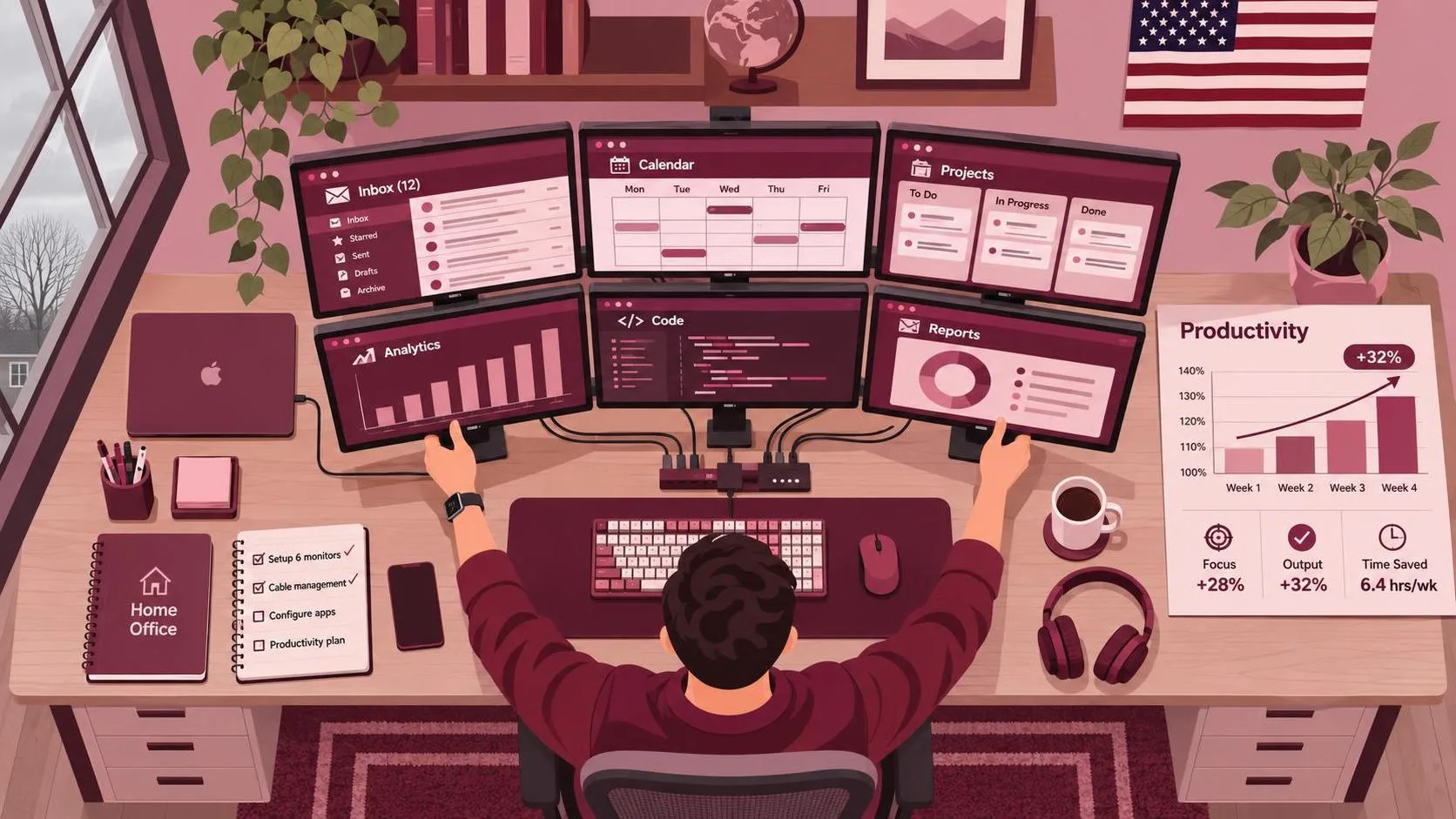
A 6 monitor pc setup usually fails for a boring reason: the builder counted ports instead of checking how many displays the hardware can actually drive. The reliable approach is to confirm the active-display limit for each graphics device, map every screen to a supported output, and check resolution and refresh-rate limits before buying adapters. Six screens do not automatically require a monster gaming GPU, but they do require a plan.
Start with the display limit, not the port count
Look up the maximum number of simultaneously active displays for your exact graphics card or integrated GPU. Also check the card manufacturer's documentation: the outputs on a particular board and the combinations it supports may differ from another card using the same graphics chip.
A card with four physical connectors is not necessarily capable of driving a fifth screen through an adapter. Likewise, six sockets across a graphics card and motherboard do not prove that all six will work together. Integrated graphics must be present in the processor and enabled in firmware, and the motherboard's video outputs must support the displays you intend to connect.
There are three common ways to reach six: use a graphics solution explicitly rated for six displays, combine a discrete graphics card with supported integrated graphics, or use multiple graphics devices. Each adds its own compatibility checks. For a mostly static dashboard or office layout, a supported USB graphics adapter is another option, with important limitations discussed below.
Write down each monitor's resolution, desired refresh rate, and available inputs. Then assign each one a connection. That little map will catch a bad plan before you spend money on a pile of cables.
Plan the connections for a 6 monitor pc setup
DisplayPort, HDMI, USB-C, and adapters are not interchangeable just because the plugs eventually fit. A USB-C port needs to support video output, such as DisplayPort Alt Mode, to connect a monitor directly through a compatible USB-C video adapter. A plain USB data port won't do that on its own.
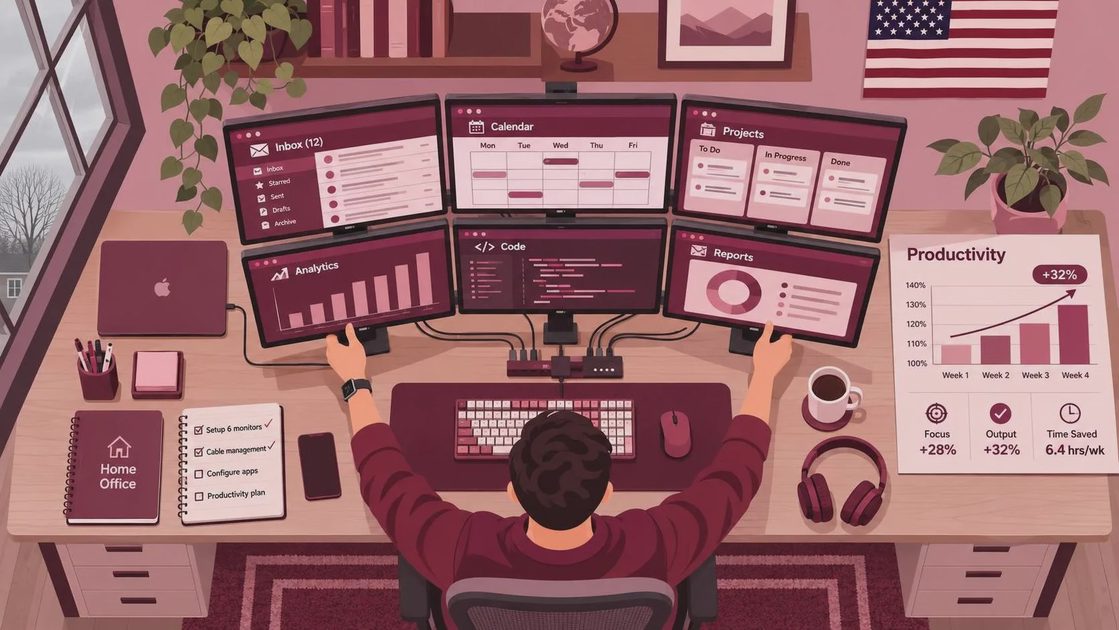
DisplayPort Multi-Stream Transport, or MST, can carry separate display streams through a compatible hub or daisy chain. The source, hub, monitors, and available bandwidth all matter. An MST hub does not override the GPU's maximum active-display count. Check the hub's supported combinations at your intended resolution and refresh rate; six desktop screens at modest settings are a different bandwidth problem from six high-refresh 4K panels.
An HDMI splitter is the wrong tool for extending a desktop. It generally duplicates a signal rather than giving Windows six independent displays. For DisplayPort-to-HDMI connections, check whether the adapter must be active and whether it supports the resolution and refresh rate you need. Adapter listings that say only “4K supported” leave too much unanswered.
If you mix a graphics card with motherboard outputs, check the motherboard manual for the integrated-graphics setting. Names vary by firmware. The processor also has to include a functioning integrated GPU; a motherboard video socket cannot create graphics capability by itself. You may need drivers for both graphics devices.
Pick the hardware around the workload
Six spreadsheets and a browser full of tabs are not the same workload as six screens of video or a game stretched across several panels. For desktop work, prioritize documented display support and stable drivers over raw frame rates. Check the maximum resolution and refresh rate for every output, including any adapter in the chain.
For gaming, keep the game on the primary display unless you have a specific reason to span screens. Rendering a game across multiple monitors raises the pixel count and GPU load quickly. A second graphics device does not automatically combine its power with the first, and mixed-device multi-monitor gaming support depends on the application and hardware.
A USB graphics adapter using DisplayLink technology can add desktop displays on supported systems, but it uses a software driver and is not the same thing as a native GPU output. It may be fine for documents and monitoring panels. For latency-sensitive gaming, video playback, or protected streaming content, check the adapter's compatibility and expect potential limitations before committing to it.
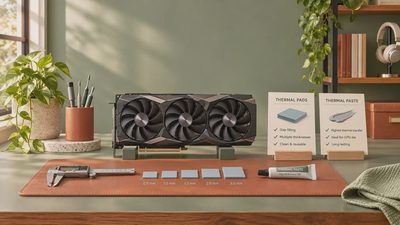
Two discrete graphics cards are another route, but check the motherboard's slot layout, physical clearance, power supply connectors, and case airflow first. The second card needs a usable PCIe slot; it does not need to be linked to the first just to provide separate desktop outputs. Two cards can also crowd each other and raise case temperatures. Don't choke the main GPU just to avoid buying a sensible adapter.
Arrange six displays so you can work
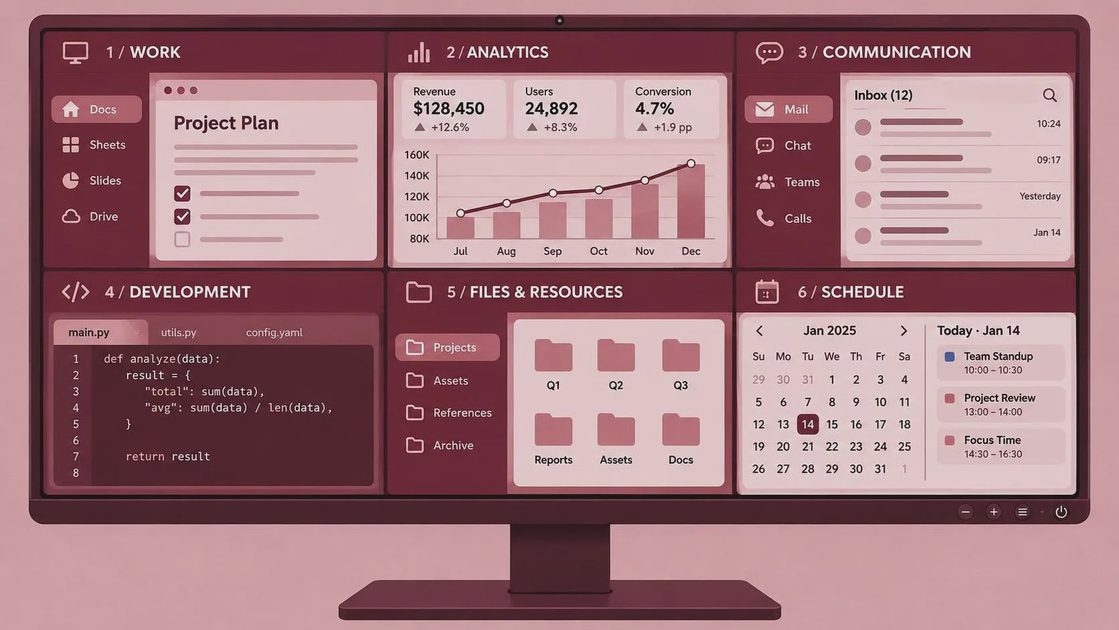
A three-wide, two-high layout is common because it keeps the footprint manageable. Put your main screen directly in front of you, not on a seam between two monitors. Keep the most-used material near eye level and move occasional-reference windows to the upper row. If the top row makes you tilt your head back all day, lower it or rethink the mount.
Check each monitor's mounting pattern and weight against the stand's specifications. Include the weight of brackets or adapters where the mount manufacturer requires it. A six-screen arm also puts leverage on the desk: verify the desk and clamp can handle the load, especially with thin or hollow-core tops. Use the manufacturer's reinforcement or mounting guidance rather than guessing.
Leave enough cable slack for adjustment, but keep leads clear of fans and chair wheels. Six monitors also mean six power connections unless your particular equipment consolidates them. Use a properly rated power strip and check its load rating rather than stacking cheap strips together.
Configure and troubleshoot the 6 monitor pc setup
Connect screens one at a time if you can. In Windows display settings, use Identify to match the numbered boxes to the physical panels, then drag the boxes into the same relative arrangement. Set the primary display, scaling, resolution, refresh rate, and extended-desktop mode. Mixed screen sizes and scaling can make pointer movement feel odd, so adjust the edges until the cursor crosses where you expect.
If a screen stays dark, first verify its input selection and test its cable and input with a known-working output. Then reconnect the problem screen alone. If it works alone but disappears when another screen is added, investigate the active-display limit, shared output restrictions, or MST bandwidth before blaming the monitor.
Next, update the appropriate graphics and USB display drivers from their manufacturers. Check Windows settings and firmware configuration, then test any hub or adapter separately. Change one thing at a time; swapping three cables and a driver together tells you nothing about which fix mattered.
Before ordering parts, make that six-line connection map now: monitor, resolution, refresh rate, source output, and any adapter. Compare it against the documentation for the exact hardware. That's a lot cheaper than discovering on build night that screen number six has nowhere to go.