Two weeks ago I got a call from a guy who'd spent four hours on a Reddit thread trying to fix a machine that wouldn't boot. He'd cleared CMOS seventeen times, reseated his GPU repeatedly, swapped RAM slots, and was about to order a new motherboard. I drove over, looked at the back of the case, and flipped the power supply switch from off to on. That was it. Four hours on the forums, and nobody told him to check the switch. This is PC won't post troubleshooting in the real world — start with the thing that takes five seconds, not the thing that costs two hundred dollars. I've diagnosed more dead machines than I can count, and I can tell you the same problems show up over and over. Here's the order I check them.
Before You Touch Anything — The Five-Second Check
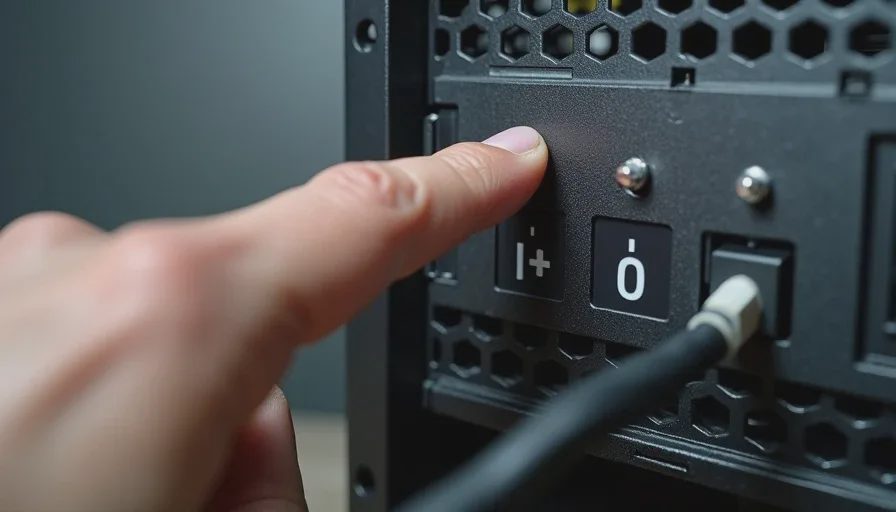
The power supply has a physical switch on the back. I know it sounds obvious. I still miss it sometimes, and I've been doing this for over twenty years. Check that switch.
Next, confirm the outlet works. Plug a lamp or phone charger into the same socket. You'd be surprised how often a tripped GFCI or a switched outlet is the problem. In offices, especially — half the cubicles I service have outlets controlled by a wall switch someone turned off on Friday afternoon.
Check that the display cable is plugged into the graphics card, not the motherboard. If you have a CPU without integrated graphics — and most Ryzen chips don't have it — plugging into the motherboard video output gives you a black screen that looks exactly like a failed POST. Same symptom, completely different cause.
What the Lights and Beeps Tell You
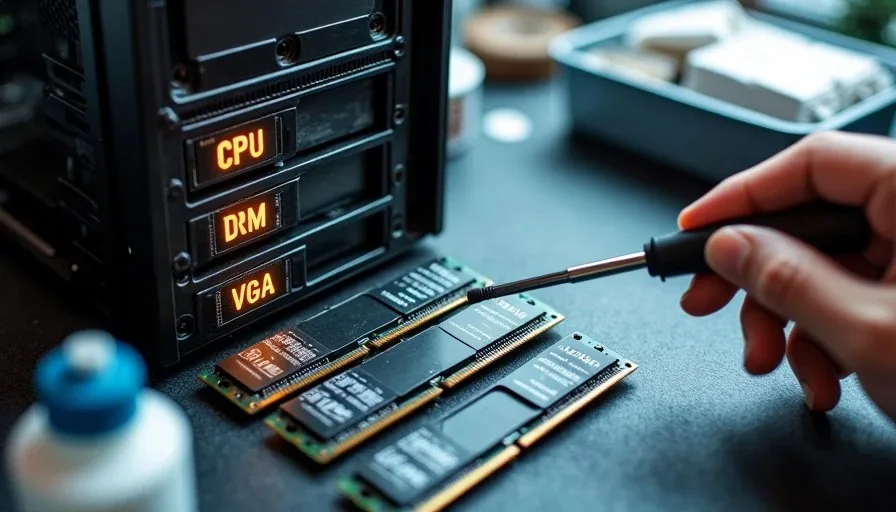
If the machine powers on but you get no display, look at the motherboard. Most boards have debug LEDs labeled CPU, DRAM, VGA, and BOOT. One of them will be lit. That light tells you where to look.
Debug LED | Most Likely Cause | Second Most Likely |
|---|---|---|
CPU solid | 8-pin EPS power not connected | BIOS version doesn't support installed CPU |
DRAM solid | RAM not fully seated | Wrong slots populated (should be A2/B2 on most boards) |
DRAM blinking | Memory training in progress — wait 2-3 minutes | Failed memory stick |
VGA solid | GPU power cable not connected | GPU not fully seated in PCIe slot |
BOOT solid | No bootable drive detected | Drive detected but no OS installed |
The DRAM light blinking is a special case. On AM5 boards, first boot can take up to three minutes of memory training while the motherboard figures out timings. If the DRAM light blinks rhythmically, step away and let it finish. Power cycling during memory training resets the process and makes it take longer.
Quick Fixes That Work Most of the Time
I have a mental checklist I run through, ordered by how often each thing is the problem. I've refined this over hundreds of machines. Skip steps and you'll spend an hour diagnosing something that takes thirty seconds to fix.
The Reseat Sequence
Work through this in order. Each step takes under a minute, and together they solve roughly eighty percent of no-POST situations I encounter.
Flip the PSU switch to off, then on. Press the power button. If nothing happens, verify the front panel power switch connector is on the right header pins — pull the connector and short the two power pins with a screwdriver to rule out a bad case switch.
Check that the 24-pin ATX connector and the 8-pin EPS (CPU) connector are both fully seated. The EPS connector especially — it sits in a corner and gets overlooked. Push until the latch clicks. If it's already clicked, unplug and replug it anyway.
Pull both RAM sticks, reseat them one at a time. Start with one stick in slot A2. If it posts, power down, add the second stick in B2. If it doesn't post with one stick, try the other stick in the same slot. A dead stick of RAM is more common than a dead motherboard.
Remove the GPU entirely. Plug your display into the motherboard output if your CPU has integrated graphics. If the machine posts without the GPU, the card or its power delivery is the problem. Reinstall the card, confirm PCIe power cables are connected, and try again.
Clear CMOS. There's usually a two-pin jumper near the coin battery, or you can pull the battery for sixty seconds with the PSU unplugged. This resets BIOS to defaults and clears any bad configuration.
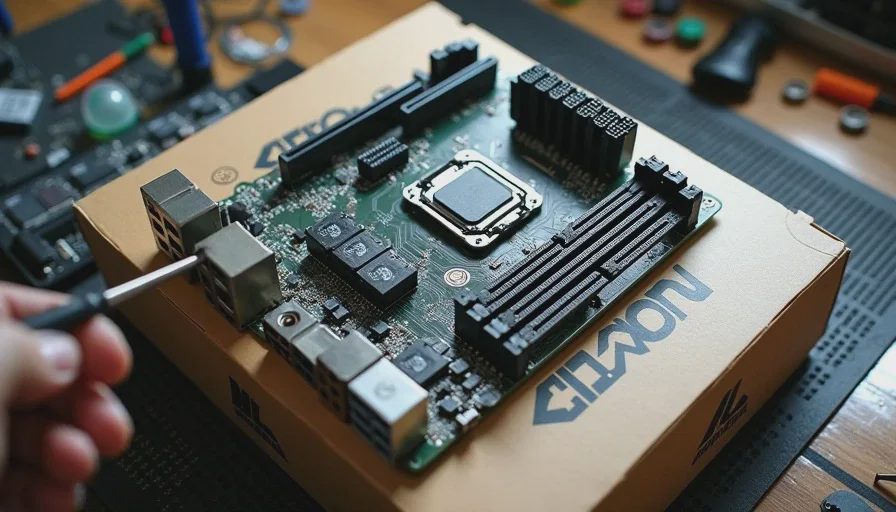
Try booting with the motherboard outside the case. Set the board on the box it came in, install only the CPU, one stick of RAM, and the cooler. Connect the PSU, short the power pins with a screwdriver. If it posts on the box but not in the case, you have a standoff short — a misplaced brass standoff touching a trace on the back of the motherboard.
The Standoff Problem
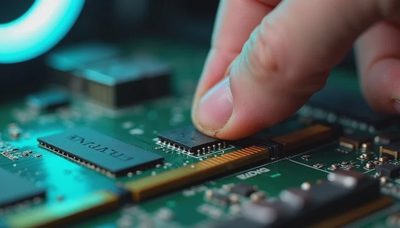
This one frustrates people because it's intermittent and makes no sense until you see it. If a case standoff behind the motherboard doesn't align with a mounting hole, it presses against the back of the board and can short a circuit. The symptom is random — sometimes it boots, sometimes it doesn't. Sometimes it powers on for half a second and shuts off. I've seen two machines in the last year with this exact issue. Both builders swore the standoffs were correct. One wasn't; one had a spare standoff rattling around behind the board from a previous build.
「图片2」
The Diagnostic Table — What Failed and How I Know
After you've run through the quick fixes and the machine still won't post, you need to isolate which component is bad. The method is swap testing — replace one component at a time with a known-good unit until the machine boots.
Component Isolation
Symptom | Suspect Component | How to Confirm |
|---|---|---|
Powers on, no display, CPU debug LED | CPU, motherboard, or BIOS | Try different CPU if available; update BIOS via Flashback |
Powers on, no display, DRAM LED | RAM or motherboard slot | Test each stick individually in each slot |
Powers on, fans spin briefly then stop | Short circuit or PSU protection | Remove motherboard from case, test on box |
Powers on, fans at full speed, no display | Motherboard or CPU | Last resort — swap motherboard |
No response at all, PSU fan doesn't spin | Dead PSU or outlet | Paperclip test on PSU; verify outlet with known device |
Powers on, display works, Windows won't boot | Storage or boot configuration | Check BIOS boot order; test drive in another machine |
The paperclip test is worth knowing: unplug all PSU cables from components, find the green wire and any black wire on the 24-pin connector, bridge them with a paperclip, plug the PSU into the wall, and flip the switch. If the PSU fan spins, the unit isn't completely dead. If it doesn't spin at all, the PSU is gone. Some modern PSUs have zero-RPM modes and won't spin under no load, so connect a case fan to a Molex or SATA power connector as well — if the fan spins, the PSU is alive.
The CMOS Battery Switcheroo
I keep a pack of CR2032 batteries in my go-bag. A dead CMOS battery won't usually prevent POST, but it can cause boot loops, clock resets, and bizarre BIOS behavior that looks like a hardware failure. If your machine boots but consistently reverts BIOS settings or shows the wrong time, replace the battery before spending money on anything else. They cost two dollars.
When to Admit Defeat
I've been doing this long enough to know when a component is truly dead. If you've worked through the entire list above, tested with known-good RAM and PSU, removed any GPU, tried a different CPU if one's available, and the board still won't post — the motherboard is likely finished. It happens. Components fail.
The only remaining test is a different motherboard with the same CPU and RAM. If that combination posts, your original board died. If it doesn't, the CPU is the problem. CPU failures are rare but not impossible, especially if the machine was involved in a power surge or had a cooler mounted with excessive pressure.
Take notes as you work through this. Write down what you tried and what happened. If you eventually need to ask someone for help — in a forum, from a local shop, from me — handing them a list of what's been ruled out gets you an answer ten times faster than "my computer doesn't turn on."
I keep a small whiteboard on the garage wall for this exact reason. When a machine fights me, I write down each test and result. More than once, the act of writing it out has made the problem obvious before I finished the list.
I turn it on so you don't have to.