
A PC that boots and launches a game can still crash an hour into a workload. That’s the reason for watching the Astros during a 12 hour stability test: let the machine work long enough to expose problems while you get on with your evening. Use a separate TV or device for the game, monitor the PC’s temperatures and errors, and don’t mistake twelve quiet hours for proof that every possible workload is stable.
The goal isn’t to punish a computer until something melts. It’s to find out whether the build can handle sustained work without errors, shutdowns, or temperatures running into its limits. Start with the side panels on and the fans configured as they’ll be used. An open case on a cool bench doesn’t tell you much about a closed case in a warm room.
Set up the test before first pitch
Finish the build, install the operating system and drivers, and confirm that all fans and the CPU cooler are working. Back up anything important before stress testing. An unstable system can corrupt files, and a fresh build is no place to store the only copy of your tax return.
Check temperatures at idle and under a short load first. A rapid climb toward the processor’s thermal limit is a reason to stop and inspect cooler mounting, fan connections, and airflow. Modern CPUs can reduce clock speed to protect themselves, but thermal throttling still tells you the cooling setup may not be doing the job you expect.
Pick a workload that fits the machine’s purpose. A CPU stress test checks sustained processor load and cooling. A memory test helps catch RAM errors. A graphics workload exercises the GPU. None of those alone certifies the whole system, and running every stress tool at once can produce an unrealistic load that makes diagnosis harder.

For a first pass, run the CPU test by itself and watch what happens for the first several minutes. Then test memory and graphics separately. Once those are clean, a combined workload can check how the system handles heat from multiple components at once. That order gives you a useful clue when something fails instead of a pile of suspects.
Watching the Astros during a 12 hour stability test: what to monitor
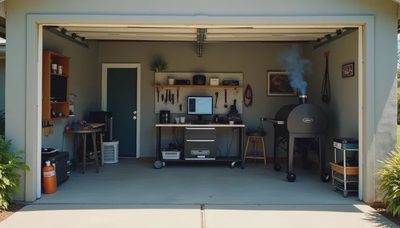
Keep a hardware-monitoring utility open with logging enabled if it supports it. Record CPU and GPU temperatures, clock speeds, fan speeds, and any reported throttling. Note the room conditions too. A garage in Houston can get hot enough to change the result, so don’t compare a run in air conditioning with one in a sweltering garage as if they were the same test.
Look for reported calculation errors, application crashes, freezes, restarts, or a system that shuts itself off. A completed timer means little if the test logged errors along the way. Likewise, a PC that stays on but spends the whole run heavily throttling may be protecting itself rather than delivering the performance you built it for.
You don’t need to stare at a temperature graph for twelve hours. Check the system closely at the start, periodically afterward, and review the log when the run ends. Use a tool’s built-in safety limits where available. Don’t leave a questionable build running unattended or overnight, especially if you notice unusual smells, grinding fans, smoke, or repeated shutdowns. Power it off and investigate.
If you’re streaming the game on the PC under test, understand the trade-off. Video playback adds another workload and may use the GPU’s video-decoding hardware. That can be useful as a real-world check, but it also muddies a controlled test. A separate screen keeps the workload consistent and lets you see the score if the computer crashes.
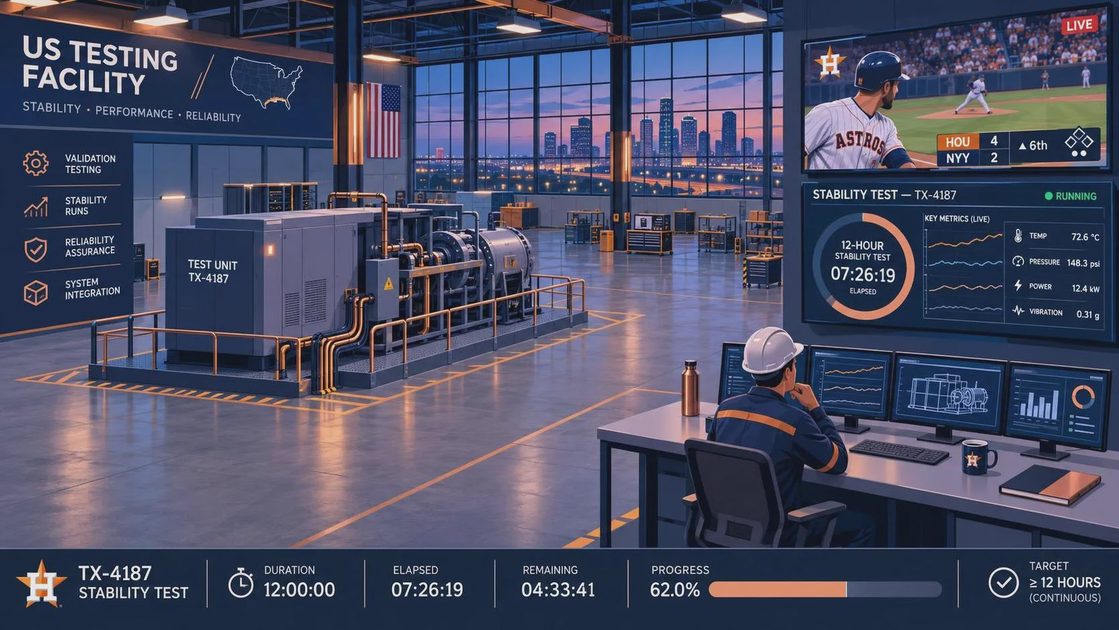
What a failure actually tells you
A crash during a CPU-heavy run points you toward processor settings, cooling, power delivery, or firmware, but it doesn’t convict any one part. Start by returning CPU overclocks and undervolts to default settings. Check cooler contact and make sure the CPU power connectors are seated. Change one thing at a time, then repeat the same workload.
A memory error deserves attention even if the desktop seems fine. Return memory settings to the motherboard’s default, including disabling an enabled XMP or EXPO profile for troubleshooting, and run the memory test again. Reseat the modules with the power disconnected, and check the motherboard manual for the recommended slots. If errors continue, testing one module at a time can help narrow the problem. A clean run at default settings followed by errors with a memory profile enabled is a useful clue, not automatic proof that a stick is defective.
If a graphics workload fails, check GPU temperatures, power connections, and any overclock or undervolt first. Driver issues and power problems can look similar, so don’t order replacement hardware based on one crash. Write down the workload, elapsed time, temperatures, and symptoms. That record makes the next test worth something.
Twelve hours is a check, not a warranty
A clean long run is encouraging. It doesn’t guarantee stability in every game, idle state, sleep cycle, or future driver update. Some faults show up during light use or transitions between loads rather than under a steady stress test. Afterward, restart the machine, try sleep and wake if you use them, and run the applications the PC was built to handle.
There’s no magic in the number twelve, either. A shorter test that catches errors and leads you to a fix beats a long run with no monitoring. Longer runs are useful when you want more confidence in sustained operation, particularly after changing memory settings or cooling. They are one part of checking a machine, not a substitute for ordinary use.
Before the next game starts, choose one workload, enable logging, and watch the first few minutes with the case closed. If the numbers settle down and the test reports no errors, let it run and check the log afterward. The Astros can keep you company; the log tells you what the PC actually did.