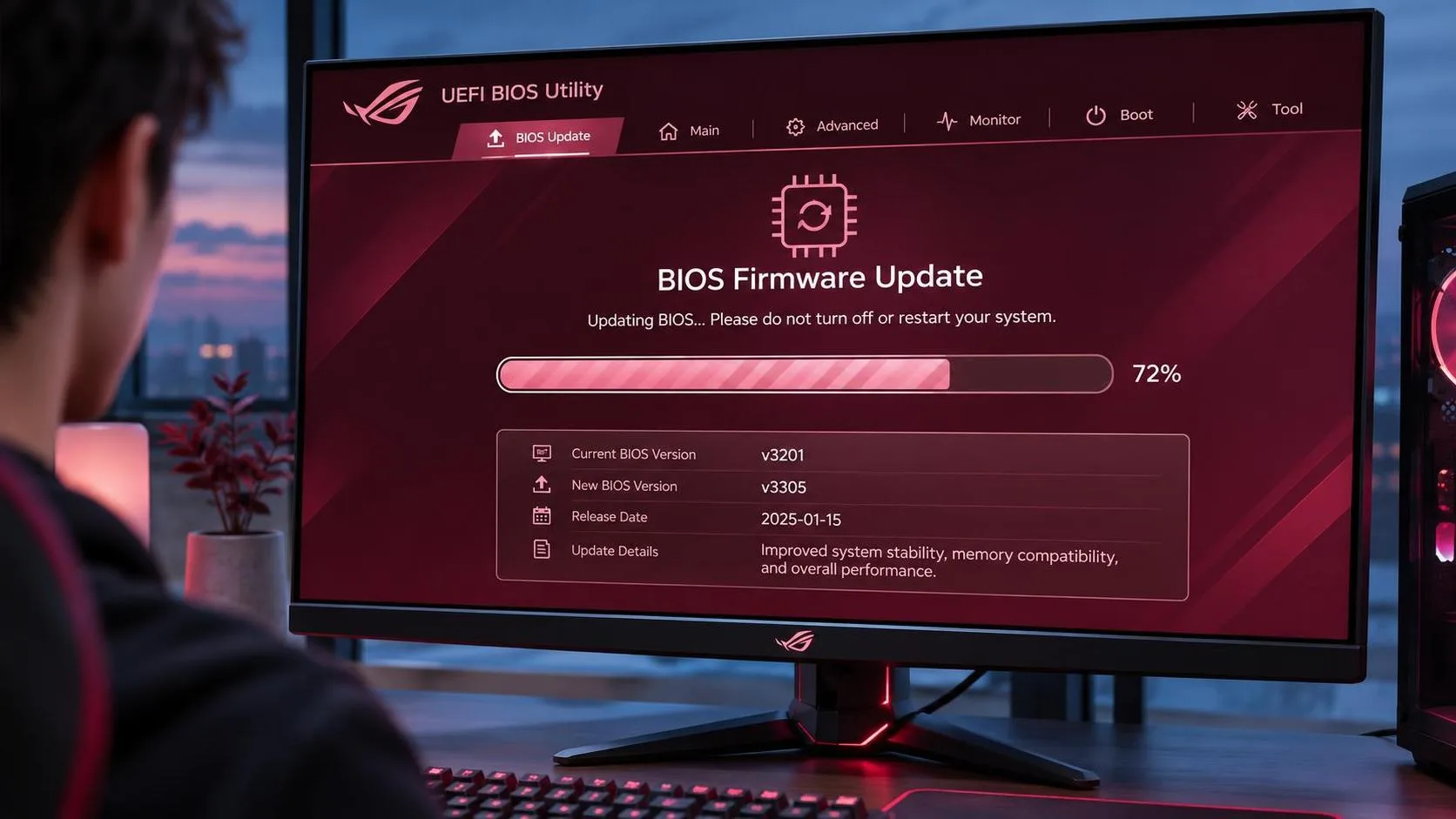
The reason this guide exists is simple: a CyberPowerPC owner sees a newer BIOS file, assumes newer means better, and ends up staring at a black screen. A cyberpower pc bios update is not a Windows driver install. It changes the motherboard firmware that initializes your CPU, memory, storage, and graphics card. Do it for a real reason, use the exact file, and leave the working machine alone when there is no benefit.
I turn it on so you don't have to. Here is the safe process I use when checking a CyberPowerPC tower on the bench.
Find the exact motherboard before downloading anything
CyberPowerPC is a system builder, not one motherboard brand. Your tower might contain an ASUS, MSI, Gigabyte, ASRock, or a less common OEM board. Two machines with the same CyberPowerPC model name can also have different revisions depending on when they were assembled. That makes downloading a BIOS by computer name alone a bad idea.
Press Windows and R, type msinfo32, and press Enter. Look for BaseBoard Manufacturer, BaseBoard Product, and BaseBoard Version. You can also enter BIOS by tapping Delete or F2 during startup. Write down the motherboard model exactly, including suffixes such as WiFi, AX, II, or a revision number. A file for an MSI PRO B650-P is not automatically right for an MSI PRO B650-P WiFi.
Before starting the cyberpower pc bios update, check the current BIOS version in System Information. Then visit the motherboard manufacturer's support page, not a random driver mirror. Compare the version number, release notes, and supported processor list. If the notes only mention a CPU you do not own, a minor compatibility fix, or a feature you will never use, there is a reasonable chance you should skip the update.
A phone photo of the motherboard screen and the downloaded file name is cheap insurance. So is saving your BitLocker recovery key before firmware work. Firmware changes can trigger a recovery prompt because the system's security measurements changed, even when Windows itself is fine.
When a BIOS update is actually worth doing
The strongest reasons include installing a newer processor, fixing a documented memory compatibility problem, correcting a known boot issue, or applying a security fix listed by the board maker. For example, an early AM5 BIOS often received updates that improved DDR5 memory training and support for later Ryzen processors. That is a useful reason. Chasing a vague promise of “better gaming performance” is not.
A cyberpower pc bios update will not turn a GTX 1660 into an RTX 4070. It will not fix a dying SSD, poor airflow, a loose power cable, or a game that crashes because its drivers are broken. BIOS updates can sometimes improve stability, but they are not a general-purpose repair tool. If the PC is stable and the release notes do not solve a problem you have, leave it running.
Do not update during a thunderstorm, while the system is overheating, or from an unstable overclock. Return the processor and memory to default settings first. Disconnect unnecessary USB devices, close applications, and use a reliable power source. A desktop connected to a UPS is ideal; a loose extension cord behind a workbench is not.
How to perform the update safely
Download the BIOS file for the exact board and extract it. Most manufacturers provide a ZIP archive. Read the included instructions because the required file name and flash method differ between boards. Format a small USB drive as FAT32, copy only the needed BIOS file to its root directory, and safely eject it.
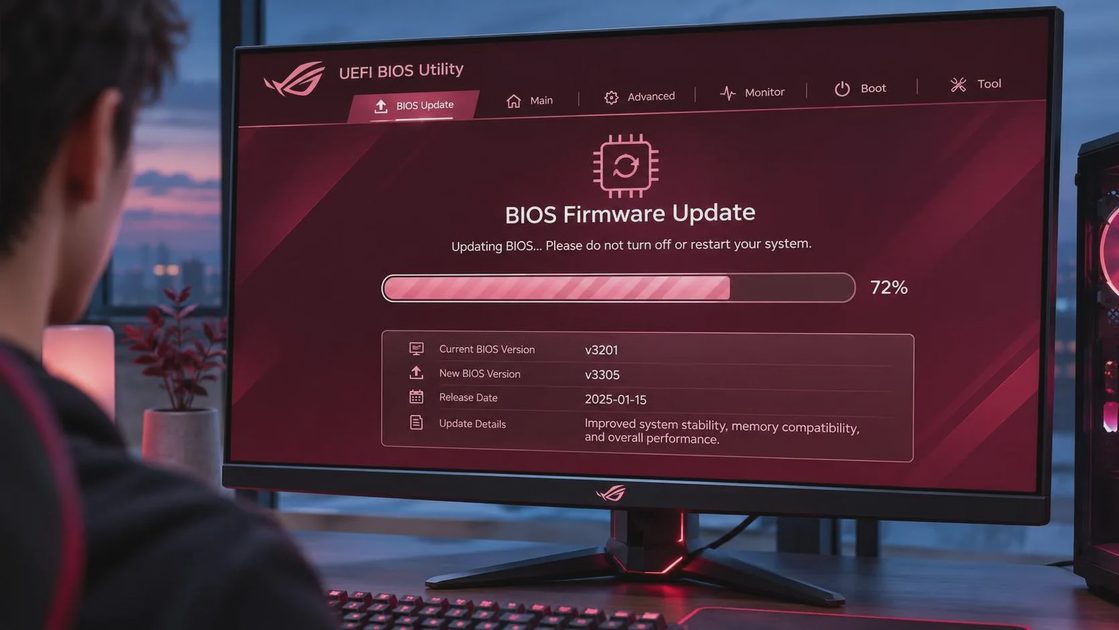
Restart the PC and enter UEFI. Look for the vendor's built-in tool: ASUS EZ Flash, MSI M-Flash, Gigabyte Q-Flash, or ASRock Instant Flash. Select the USB drive and verify the displayed model before confirming. If the tool says the file is invalid, stop. Do not rename files randomly or force the update with a command-line trick.
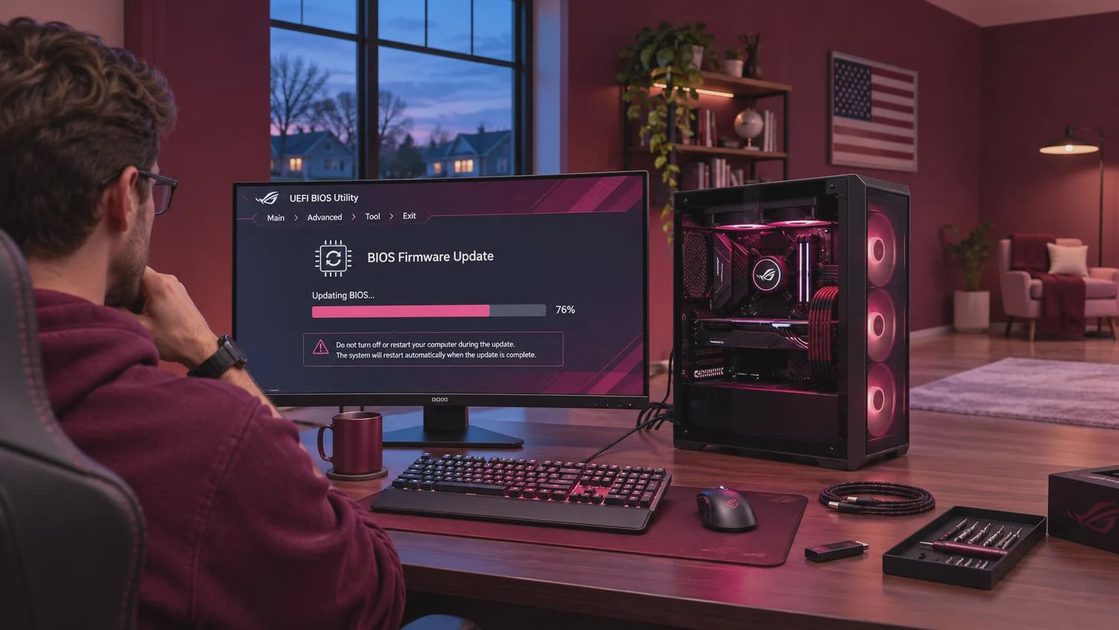
During the cyberpower pc bios update, fans can speed up, the display can go blank, and the computer can restart more than once. That is not permission to press the power button. Give the process time. Some boards take several minutes, especially during memory training. The screen may remain dark long enough to make an impatient builder reach for the switch. Resist that urge.
When it finishes, enter UEFI again and load optimized defaults if the manufacturer recommends it. Then set the basics back: boot mode, fan curves, memory profile, virtualization, and any storage configuration you changed. If you use XMP or EXPO, enable it only after the machine boots reliably at default settings.
What to check after the flash
A successful cyberpower pc bios update is only the halfway point. In Windows, confirm the new BIOS version with msinfo32. Check Device Manager for warnings, verify that all drives appear, and make sure your network and audio devices work. Watch the first few boots. A longer first startup can be normal while memory retrains; repeated restarts are not.
Run a practical stability check instead of trusting one successful login. Start with 10 minutes of CPU testing in OCCT or Cinebench, then run a game you actually play for 30 to 60 minutes. Keep an eye on CPU temperature, system shutdowns, and memory errors. In a warm Houston garage, I care more about a machine surviving a long gaming session than winning a synthetic benchmark by two percent.
If Windows asks for a BitLocker recovery key, use the key you saved before starting. If the system enters a boot loop, power it down only after allowing the board's documented recovery process to finish. Clear CMOS according to the motherboard manual, then boot at defaults. Some CyberPowerPC systems also have a recovery button or a backup BIOS feature, but the location and procedure depend on the board.
A short decision check before you click Confirm
Ask four questions. Do I know the exact motherboard model? Does the release note address my CPU, memory, security concern, or current failure? Is the computer stable at stock settings? Do I have power protection and a recovery plan? If any answer is no, stop and gather the missing information.
The safest cyberpower pc bios update is the one performed for a clear reason, with the right file, after a backup and recovery check. If the PC is stable, the current firmware supports your hardware, and the new version offers nothing useful, skipping it is not laziness. It is good maintenance.
Right now, press Windows and R, run msinfo32, and record the baseboard model and current BIOS version. Compare those details with the manufacturer's support page. If the file matches and solves a real problem, prepare the FAT32 drive and update through UEFI. If it does not, close the browser and go play a game. The machine already works.