I've bought maybe thirty used GPUs over the past six years, and I've been burned exactly twice. Both times were early on, and both times I paid before testing. This used GPU buying guide exists so you don't repeat those mistakes. As someone who takes on local build and repair jobs in Houston, I see a steady flow of used cards — from miners offloading after a crash, from gamers upgrading, from small businesses decommissioning workstations. Some are great deals. Some are time bombs. The difference is knowing what to check before money changes hands.
Rule One — Never Pay Before You Test In Person
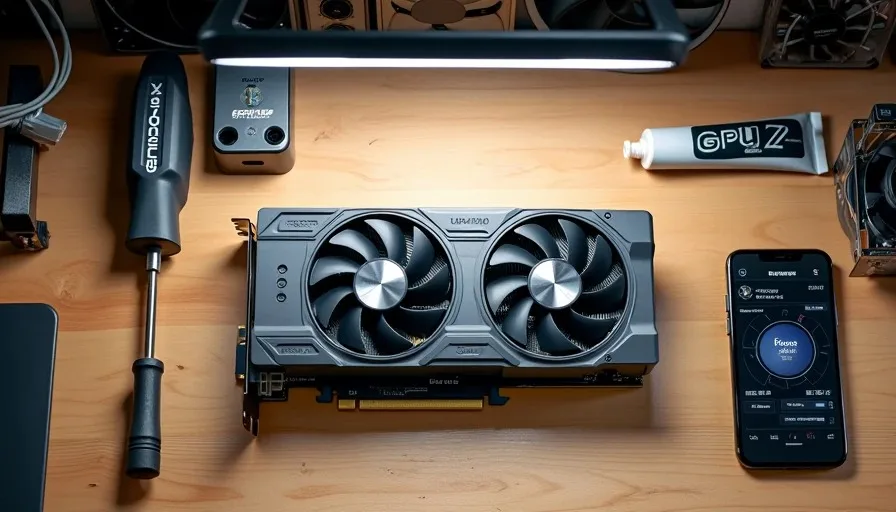
If the seller won't let you meet up, plug the card into a test bench, and run it for fifteen minutes, walk away. I don't care if it's listed at half market price. I don't care if they say it "works fine, just trust me." Every legitimate seller I've dealt with has been fine with an in-person test. The ones who refused were the ones hiding something — dead VRAM, artifacting under load, a card that overheats in thirty seconds. Meet at a public place with power available. I use my garage, but a coffee shop with an outlet and a portable test rig works too. Bring your own PSU cables, a screwdriver, and a flash drive with testing software.
What to Bring to a GPU Test Meetup
A portable test rig or your own system with the PSU already connected — you need to power the card without relying on the seller's setup
A USB drive loaded with FurMark, HWiNFO64, and GPU-Z — these three cover thermal load, sensor monitoring, and BIOS verification
A known-good display cable (DisplayPort and HDMI) — don't use the seller's cable, because a bad cable can mask a bad output port
A phone for taking photos of the card before you buy it — serial number, condition, any physical damage
Cash in the exact agreed amount — no overpaying "because that's all I have"
Rule Two — Visual Inspection Before You Plug Anything In
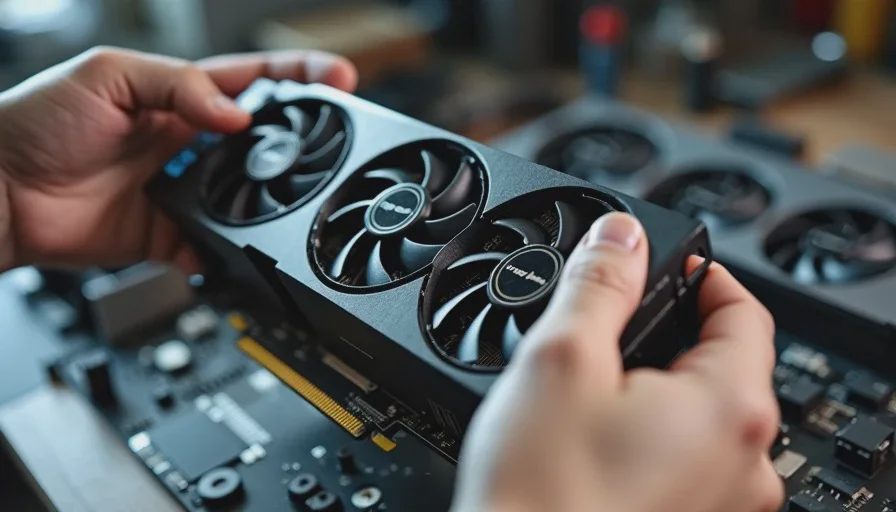
The visual inspection tells you more than any benchmark. I spend five minutes just looking at the card before it goes near a PCIe slot. Check the PCB for discoloration around the VRM area — a brownish tint means it ran hot for a long time. Look at the thermal pads between the heatsink and the memory modules: if they're cracked, dried out, or squeezed flat, the card has been run hard and the pads need replacing. Check the fan bearings by spinning each fan gently with your finger — grinding or wobble means the bearings are going. Look at the PCIe slot edge connector for bent pins or scratch marks that suggest it was forced in and out repeatedly.
Mining Card Signs — What to Watch For
Mining cards aren't automatically bad. A card that mined at moderate settings for a year can outlast one that was overclocked for gaming daily. But mining cards have specific wear patterns you need to identify.
Inspection Point | Normal Wear | Mining Card Red Flag |
|---|---|---|
Thermal pads | Slightly compressed, still springy | Flat, cracked, oily residue |
Fan blades | Light dust, even wear | Heavy dust on leading edges, one fan stiffer than the other |
PCB color near VRMs | Uniform board color | Yellow/brown discoloration from sustained heat |
PCIe connector | Minor insertion marks | Deep scratches, bent edge pins |
Backplate screws | Paint intact, normal torque | Stripped screw heads from frequent repasting |
BIOS version (check GPU-Z) | Matches manufacturer spec | Flashed to mining BIOS, non-standard clocks |
Rule Three — Run It Under Load for Fifteen Minutes Minimum
A card that posts and shows a desktop means nothing. I've had cards that ran fine at idle and artifacted the moment you put them under load. The test sequence is simple: install the card, boot to desktop, open GPU-Z and confirm the BIOS version and clocks match the expected specs for that model. Then launch HWiNFO64 to monitor temperatures, launch FurMark, and let it run for fifteen minutes. What I'm watching is the temperature curve, the fan ramp, and the screen for artifacts.
What the Temperature Curve Tells You
The temperature should climb steadily for the first three to five minutes and then plateau. A card that keeps climbing past the ten-minute mark without leveling off has a thermal problem — bad paste, degraded pads, or a failing fan. A card that jumps to 85°C in thirty seconds has a mounting pressure issue or a completely dried-out thermal paste situation. Here's what I consider acceptable for used cards under FurMark load:
GPU Tier | Acceptable Load Temp (15 min) | Walk-Away Temp |
|---|---|---|
Entry-level (e.g., GTX 1650, RX 6400) | 65-72°C | Above 80°C |
Mid-range (e.g., RTX 3060, RX 6600) | 68-76°C | Above 83°C |
Upper-mid (e.g., RTX 4060 Ti, RX 7700 XT) | 70-78°C | Above 85°C |
High-end (e.g., RTX 4070, RX 7800 XT) | 72-80°C | Above 88°C |
These aren't factory specs — they're my real-world thresholds for used cards. A brand-new card will run cooler. A used card running at the top of the acceptable range is still fine, but you should plan to repaste it within the first month of ownership.
Rule Four — Know Your Price Ceiling Before You Shop
The whole point of buying used is paying less than retail for a card that performs the same. But "less than retail" isn't specific enough. I set a price ceiling for every tier before I start shopping, and I won't go above it no matter how clean the card looks. The ceiling is based on what the same performance costs new, minus at least 30%. If a used RTX 3060 is listed at 280, that's only an 18% discount — not enough to justify the risk. At 170, I'll buy it if it passes inspection.
Price Thresholds I Use
Entry-level used cards: Maximum 40% off MSRP. These depreciate fast, so if the discount isn't deep, buy new and get the warranty.
Mid-range used cards: Target 30-35% off current new price. This is the sweet spot — the previous owner took the biggest depreciation hit, and the card still has years of life left.
High-end used cards: Target 35-40% off, but demand original box, accessories, and proof of purchase. High-end cards are more likely to have been overclocked or mined, so the extra documentation matters.
Previous-generation flagships: Target 50%+ off original MSRP. These are the riskiest buys — heavy use, unknown history — but the price should reflect that.
Rule Five — Red Flags That End the Deal Immediately
Some things can't be negotiated past. If I see any of these, the meeting is over and I leave. No exceptions.
Seller won't let you test under load: The card has a problem they don't want you to discover. Leave.
GPU-Z shows a different card name than the listing: Reflashed BIOS to fake a higher-tier card. This happens more than you'd think on lower-end cards. Leave.
Visible burn marks or bulging capacitors on the PCB: Component-level damage. Not worth the repair cost. Leave.
Memory temperature is 15°C+ higher than core temperature under load: Degraded thermal pads on the memory. Fixable, but you should negotiate the price down by at least $40 for the pad replacement and labor.
Seller pushes to meet at night or in a parking lot with no power: No way to test means no way to verify. Reschedule or walk.
Buying used GPUs is how I keep client build costs reasonable. A used RX 6600 at the right price can be the difference between a 800 build, and the performance is identical to a new card if you test it properly. The five rules above have kept me clean for four years straight. I turn it on so you don't have to.