
The first time I paid attention to ssd 3d nand, it was because a budget gaming build started stuttering during large file transfers. The drive looked great on paper. It had a familiar brand name, a fast interface, and a big sequential-read number. In the garage, with Houston heat pushing against the closed door, it behaved like a cheap flash drive wearing a racing sticker. After replacing it with a better TLC-based model and setting up proper airflow, the machine stopped hanging. That is the useful lesson: NAND type matters, but it is not the whole drive.
What ssd 3d nand actually means
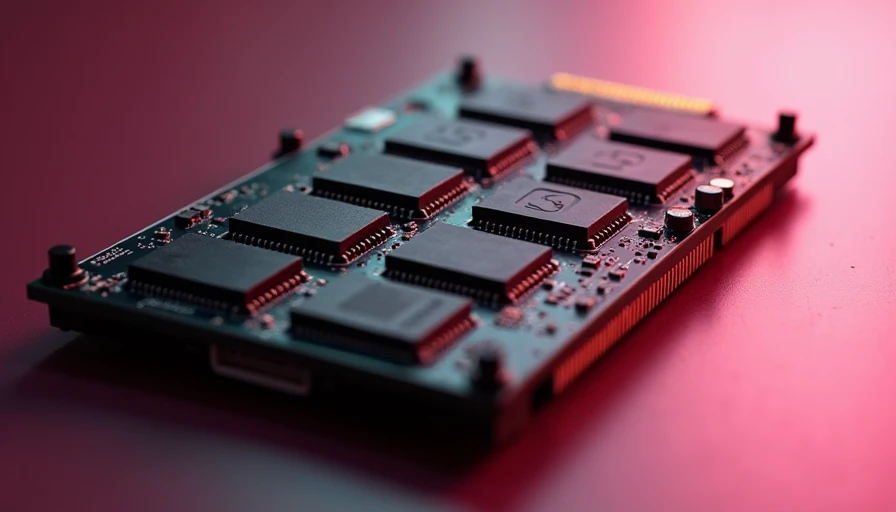
NAND is the flash memory where an SSD stores your operating system, games, applications, and personal files. Three-dimensional NAND stacks memory cells vertically instead of laying every cell across one flat surface. That design lets manufacturers fit more storage into a smaller area while improving manufacturing efficiency and, in many generations, durability.
The phrase ssd 3d nand is a broad description, not a quality guarantee. A $45 drive and a $150 drive can both use 3D NAND and still deliver very different results. Controller design, cache behavior, firmware, cell type, temperature, and warranty all matter. Think of NAND as the shelves in a workshop. The controller is the person finding parts. More shelves help, but a disorganized worker still wastes your afternoon.
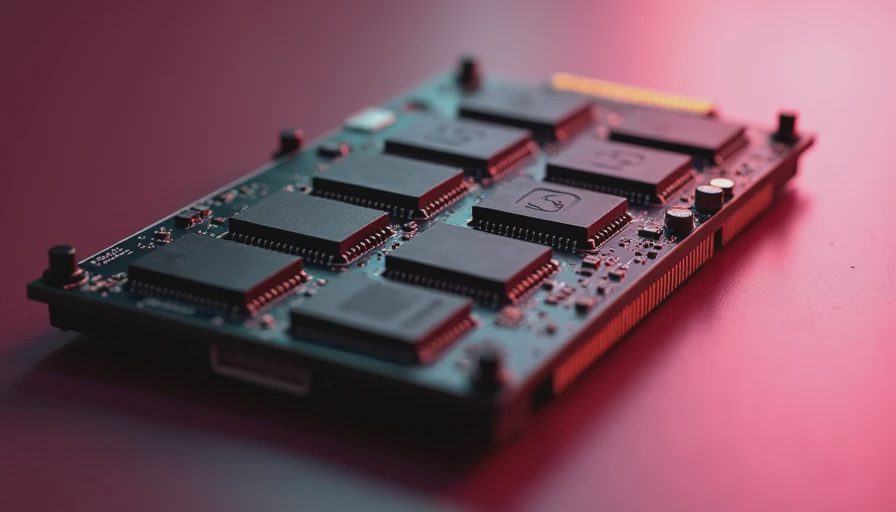
Most current consumer SSDs use TLC or QLC flash. TLC stores three bits per cell and usually offers a stronger balance of speed, endurance, and price. QLC stores four bits per cell, which allows affordable high-capacity drives but can slow down after the fast write cache fills. For a game library, QLC can be perfectly serviceable. For repeated video exports, virtual machines, or daily scratch-disk work, I prefer TLC.
TLC, QLC, and the numbers that matter
When I compare ssd 3d nand drives, I start with the workload instead of the advertised peak speed. A PCIe 4.0 NVMe drive claiming 7,000 MB/s reads can feel almost identical to a good 3,500 MB/s PCIe 3.0 drive when launching Windows or loading a game. Both are already fast enough that the CPU, game engine, or decompression process often becomes the bottleneck.
Sustained writes tell a different story. A drive can write quickly while its dynamic SLC cache has room. Once that cache fills, performance can drop sharply, especially on some QLC models. Copying a 20GB game is not the same as copying 400GB of video footage. Check independent tests that measure long transfers, not just a short benchmark burst.
Endurance is usually listed as TBW, or terabytes written. A rating of 300 TBW does not mean the drive will fail at 300 TB. It is a warranty-related endurance figure, and normal gaming use may never approach it. Still, a higher rating is useful when two similarly priced drives have comparable performance. A five-year warranty and a known controller are worth more to me than another line of flashy packaging.
NVMe versus SATA: do not overcomplicate it
A 2.5-inch SATA SSD is still a sensible upgrade for an older desktop or laptop. It usually tops out around 500 to 550 MB/s, but that is dramatically faster than a hard disk and makes an old machine feel new again. SATA drives also run cool and do not require a motherboard M.2 slot.
NVMe drives install into an M.2 slot and communicate through PCIe. They are faster for large transfers and often easier to cable because there are no data or power leads. PCIe 3.0 models remain good budget choices. PCIe 4.0 is the sweet spot for many new builds. PCIe 5.0 can produce impressive benchmark numbers, but its heat output and price are hard to justify for a normal gaming system.
Before buying an ssd 3d nand drive, confirm the motherboard supports the length and interface you plan to use. Most desktop boards accept the common 2280 size, but small-form-factor systems can be picky. Also check whether installing an M.2 drive disables any SATA ports. That detail lives in the manual, not in the marketing headline.

The drives I would actually consider
For a dependable everyday build, I look at models such as the WD Black SN770, Solidigm P44 Pro, Samsung 990 EVO Plus, Crucial T500, and SK hynix Gold P31, depending on current pricing and platform support. Those names are not magic. The exact controller, NAND generation, capacity, and firmware still matter. A two-terabyte drive often delivers better sustained behavior than a one-terabyte version because it has more flash available for management and wear leveling.
The WD Black SN770 has been a practical choice for gaming-focused systems where strong real-world performance matters more than having a top benchmark score. The Crucial T500 is attractive for a faster PCIe 4.0 build. The SK hynix Gold P31 has earned a reputation for efficiency, which matters in laptops and compact cases. Samsung remains easy to find and well supported, but I do not pay a premium just for the logo.
Prices move constantly, so compare cost per usable terabyte. A 1TB drive around $60 to $90 can be a solid buy when discounted. A 2TB model around $100 to $160 is often the better long-term value. Do not fill the drive to the last few gigabytes. Leaving roughly 10 to 20 percent free gives the controller room to manage data and can help maintain consistent performance.
Heat, airflow, and installation mistakes
Flash storage does not need a wind tunnel, but fast NVMe drives can throttle when they get hot. Use the motherboard heatsink if it includes one, remove the protective film from the thermal pad, and make sure the drive is sitting flat before tightening the screw. The film mistake is common. I have fixed more than one build where the heatsink was installed with plastic still covering the pad.
Place the drive away from a hot graphics card when the board gives you options. In a warm case, a front intake fan aimed across the motherboard does more good than an expensive heatsink with no airflow. After installation, update firmware only through the manufacturer's official utility, then run a file copy and monitor temperatures. A drive that performs well for thirty seconds has not passed the test.
A simple buying checklist
Start by identifying the computer's interface: SATA, PCIe 3.0, PCIe 4.0, or PCIe 5.0. Then choose capacity based on the next two years, not just today's install. Windows, applications, and a few large games can consume 1TB quickly. For a gaming machine, 2TB is the comfortable target if the budget allows it.
Next, verify whether the drive uses TLC or QLC, check the warranty and TBW rating, and read a long-transfer review. Look for independent testing from outlets that measure temperatures and post-cache write speed. If the drive is for a workstation, prioritize sustained performance and endurance. If it is for a basic office computer, a cool SATA model can save money without making the system feel slow.
Finally, back up anything you cannot replace. An ssd 3d nand drive is faster and quieter than a hard disk, but it is not a backup. Use an external drive, a second local copy, or a reputable cloud service. Storage failures are rude, and they never wait for a convenient weekend.
The short version is simple: buy TLC when prices are close, choose capacity before bragging rights, and do not confuse a peak benchmark with daily speed. A good ssd 3d nand drive will make the machine responsive, quiet, and boring in the best possible way. That is what I want from storage. I turn it on so you don't have to.